

 Ask AI


Room photos
Choose an assistant. It opens with a ready-made question, reads this article and answers your questions.
Open in ChatGPT (opens in a new tab) Open in Claude (opens in a new tab) Open in Perplexity (opens in a new tab) Open in Gemini (opens in a new tab) Open in Grok (opens in a new tab) View as MarkdownChoose an assistant. It opens with a ready-made question, reads this article and answers your questions.
Open in ChatGPT (opens in a new tab) Open in Claude (opens in a new tab) Open in Perplexity (opens in a new tab) Open in Gemini (opens in a new tab) Open in Grok (opens in a new tab) View as MarkdownOn this page
On this page
Web Application
Introduction
Users have the ability to easily add and edit photos of rooms in the online booking system. This section allows the addition of up to 8 photos, which are crucial for presenting the offer.
Instructions
Photos Tab
In this section, you can add a maximum of 8 photos that will be visible in the online booking system. To add photos, you need to Click on the designated area, which will open a file browser, or Drag and Drop the selected photos directly into this area.
Adding Photos to a Room from the Calendar Tab:
Go to the Calendar tab.
Click on the room you want to edit.
On the right side of the screen, an editing form for the room will appear. The form consists of 4 tabs: Details, Information, Cleaning, Photos.
Click on the Photos tab.
Add photos.
In the bottom right corner of the form, click the Save Changes button.
The room will be updated.
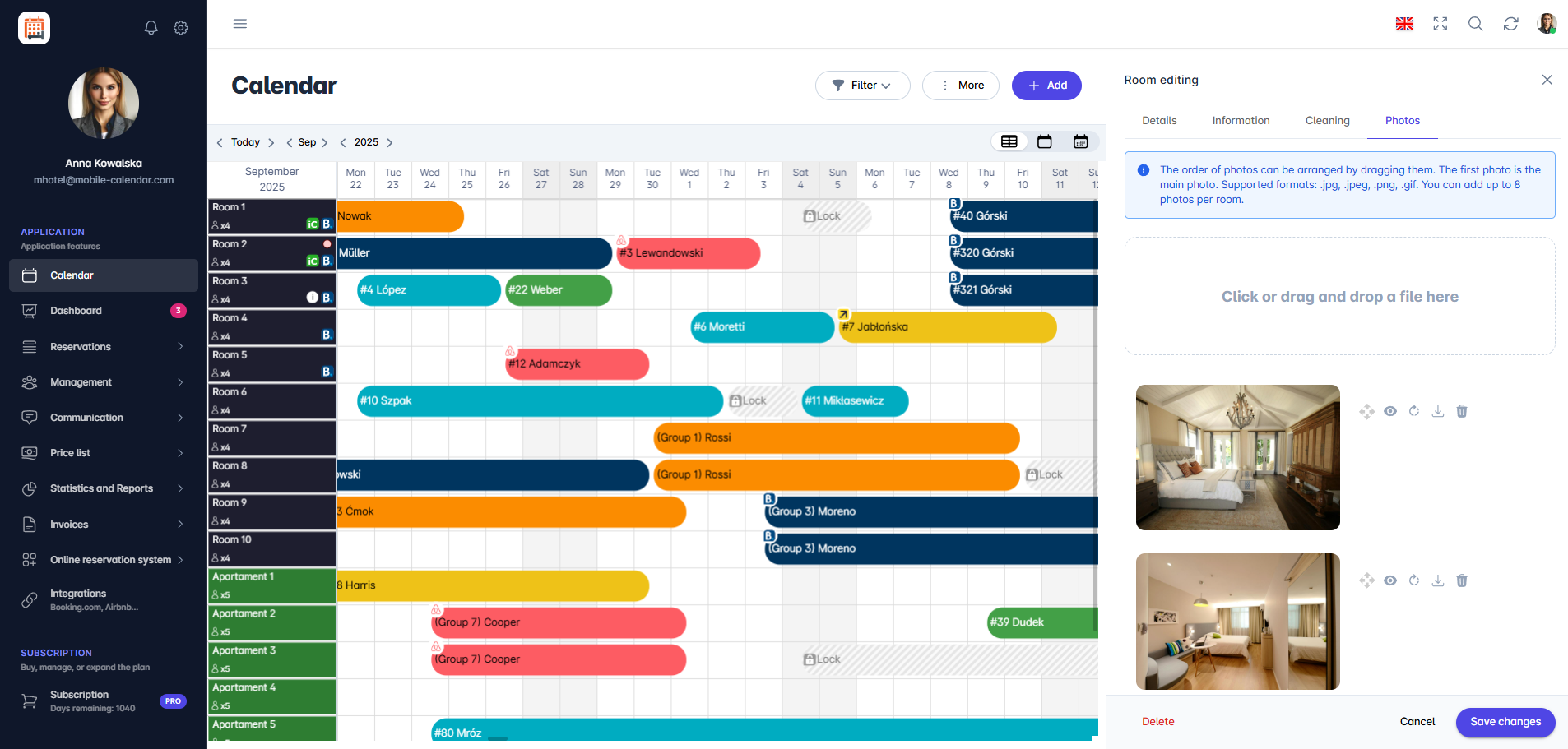
Edit Photo

Adding Photos to a Room from the Management Tab:
Go to the Management -> Rooms tab.
Select the room you want to edit from the list.
Click on the Note icon (Details column).
On the right side of the screen, an editing form for the room will appear. The form consists of 4 tabs: Details, Information, Cleaning, Photos.
Click on the Photos tab.
Add photos.
In the bottom right corner of the form, click the Save Changes button.
The room will be updated.
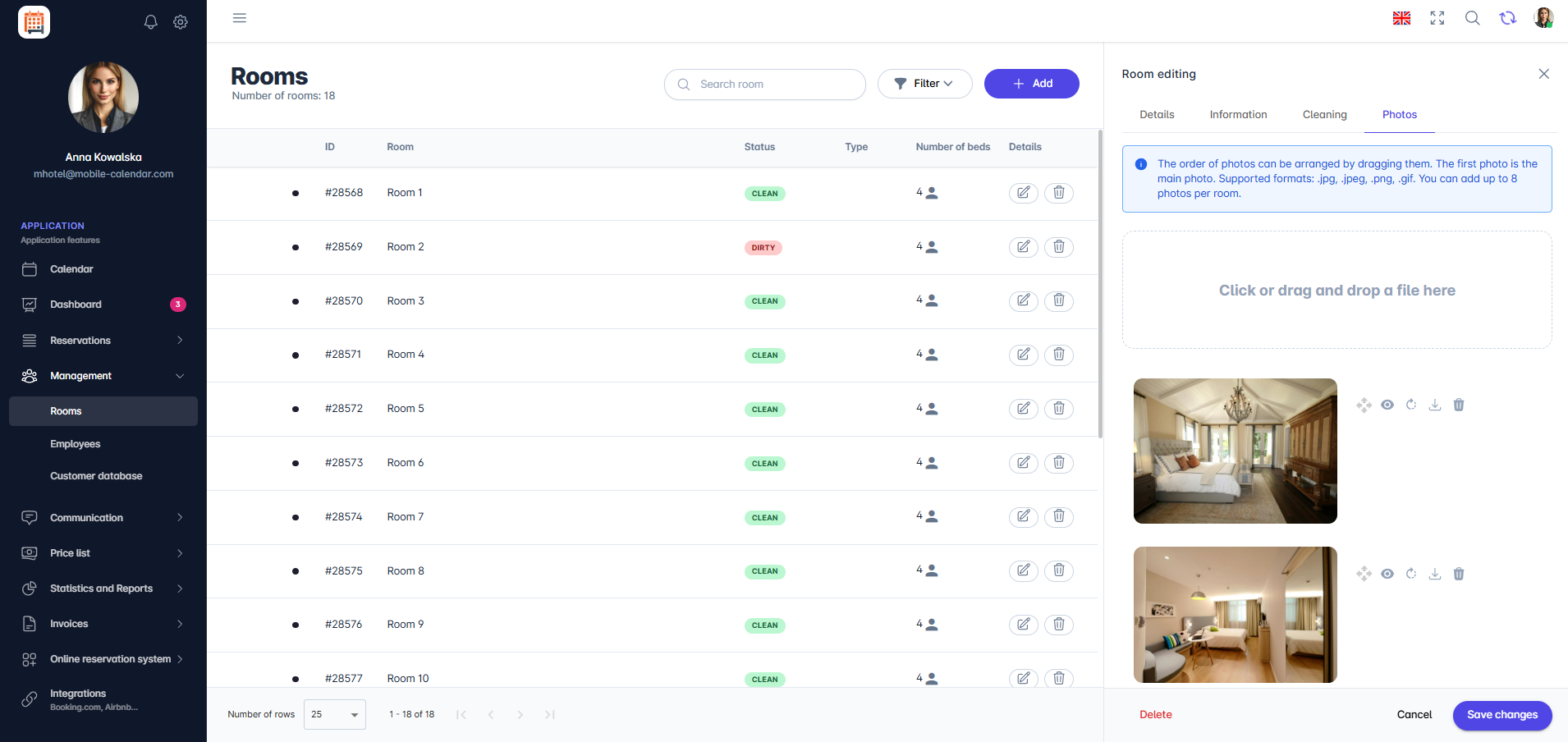
Edit Photo

Mobile Application
Introduction
On the Photos tab in the room form, you can add up to 8 photos in .jpg, .jpeg, .png, or .gif format. The first photo is the main photo.
Instructions
In the bottom menu, go to the More tab.
Go to Management -> Rooms.
Tap a room in the list.
Swipe the tab bar to the left and tap the Photos tab.
Tap Add a photo.

The system photo picker will appear. Select the photos and tap Add.
Tap Save at the bottom of the form.
Was this article helpful?
Ask AI about this article
Choose an assistant. It opens with a ready-made question, reads this article and answers your questions.
Ask AI about this article
Choose an assistant. It opens with a ready-made question, reads this article and answers your questions.