

 Ask AI


Room list
Choose an assistant. It opens with a ready-made question, reads this article and answers your questions.
Open in ChatGPT (opens in a new tab) Open in Claude (opens in a new tab) Open in Perplexity (opens in a new tab) Open in Gemini (opens in a new tab) Open in Grok (opens in a new tab) View as MarkdownChoose an assistant. It opens with a ready-made question, reads this article and answers your questions.
Open in ChatGPT (opens in a new tab) Open in Claude (opens in a new tab) Open in Perplexity (opens in a new tab) Open in Gemini (opens in a new tab) Open in Grok (opens in a new tab) View as MarkdownOn this page
On this page
Web Application
Introduction
The list of rooms in the Rooms tab contains all the spaces added to the system. To quickly find a specific room, you can use the search bar. Enter a fragment of the room name, and the system will automatically display results that match the entered text. This makes searching fast and intuitive, even with a large number of rooms in the system.
Instructions
Go to the Management -> Employees tab.
A list of all added rooms will appear on the screen.
- If you want to search for a room, click on the Search field and enter at least one letter or number that is in the room's name. The system will automatically display results that match the entered fragment.
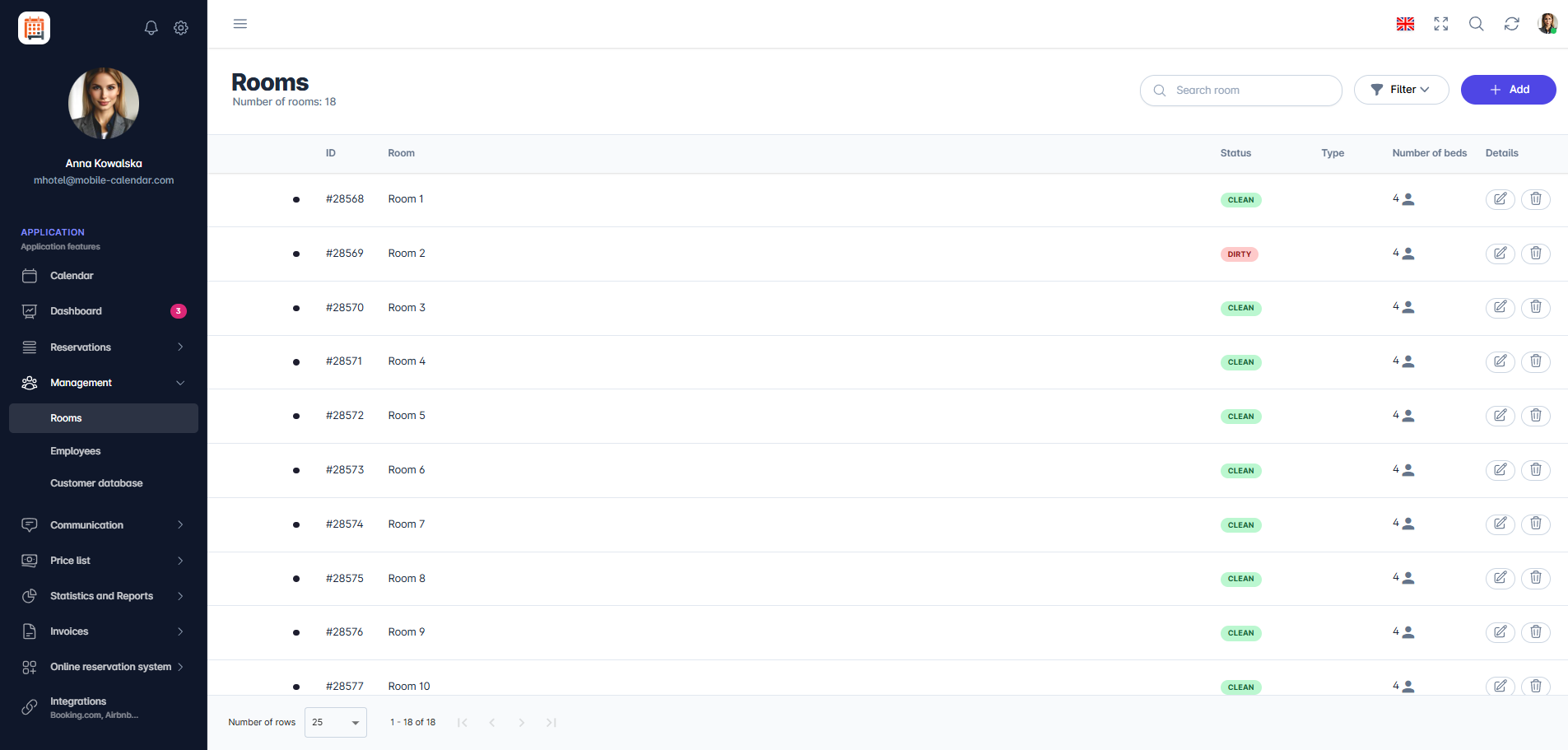
List of rooms If you want to search for a specific type of room, click on the Filter button in the top right corner of the screen.
- A filtering form will appear on the screen, which will allow you to customize the displayed list of rooms. Depending on the selected criteria, the list will dynamically change the displayed information, showing only the data that meets the specified conditions.
- Available filters in the form: Room Type, Number of Places, Cleaning Status, Bed Type, and Amenities.
- By clicking the Slider "Show only deleted," only deleted rooms will be displayed.


Mobile Application
Introduction
On the Rooms screen, you’ll find all the rooms in your property. Each one shows its name, number of guests, and bed configuration, and you can search and filter the list.
Instructions
In the bottom menu, go to the More tab.
Go to Management -> Rooms.
A list of rooms will appear. Tap a room to open its form.

Searching for a room
Tap the Search icon in the top-right corner.
Enter the room name. The list will narrow as you type.
Filtering the list
Tap the Filter icon in the top-right corner.
In the "Filter" window, select Room type, Amenities, Number of guests, or the bed type.
Tap the Apply button. The number on the button shows how many rooms were found.

- To disable the filters, open the "Filter" window, tap Clear, then Apply.
Was this article helpful?
Ask AI about this article
Choose an assistant. It opens with a ready-made question, reads this article and answers your questions.
Ask AI about this article
Choose an assistant. It opens with a ready-made question, reads this article and answers your questions.