

 Ask AI


Employee Activity
Choose an assistant. It opens with a ready-made question, reads this article and answers your questions.
Open in ChatGPT (opens in a new tab) Open in Claude (opens in a new tab) Open in Perplexity (opens in a new tab) Open in Gemini (opens in a new tab) Open in Grok (opens in a new tab) View as MarkdownChoose an assistant. It opens with a ready-made question, reads this article and answers your questions.
Open in ChatGPT (opens in a new tab) Open in Claude (opens in a new tab) Open in Perplexity (opens in a new tab) Open in Gemini (opens in a new tab) Open in Grok (opens in a new tab) View as MarkdownOn this page
On this page
Web Application
Introduction
The Employee Activities tab allows you to view actions performed within the system. This is an exceptionally useful feature as it provides full control over reservation management.
Instructions
Navigate to the Management -> Employees tab.
Click on the selected employee to see their activity within the system.
The screen will display the employee editing form, which consists of 6 tabs: Data, Permissions, Settings, Security, Devices, and Activity.
- Go to the Activity tab. From this level, you can monitor all employee activities related to reservations and rooms.
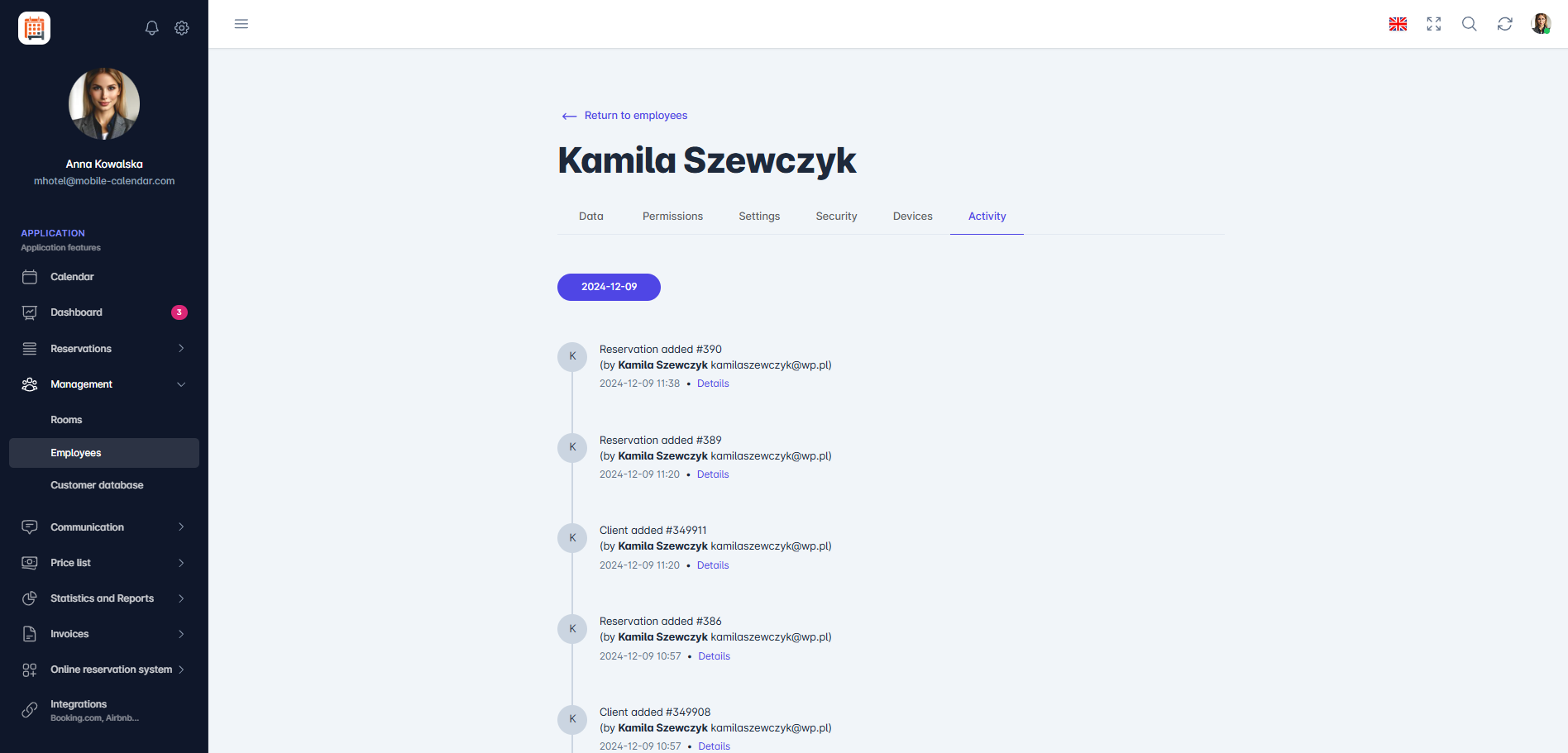
Employee Activity

Mobile Application
Introduction
On the Activity tab, you can check what an employee has done in mobile-calendar, for example, whether they added, changed or deleted a reservation. The latest actions appear at the top of the list.
Instructions
In the bottom menu, go to the More tab.
Go to Management -> Employees.
Tap the employee in the list.
The employee form will appear. Swipe the tab bar to the left and tap the Activity tab.
A list of the employee’s actions will appear, with the time and the reservation or client number.

For an entry with an Arrow, tap it to see exactly what changed.
If the employee has not performed any actions yet, the message "No changes" will appear.
Was this article helpful?
Ask AI about this article
Choose an assistant. It opens with a ready-made question, reads this article and answers your questions.
Ask AI about this article
Choose an assistant. It opens with a ready-made question, reads this article and answers your questions.