

 Ask AI


Changing employee email
Choose an assistant. It opens with a ready-made question, reads this article and answers your questions.
Open in ChatGPT (opens in a new tab) Open in Claude (opens in a new tab) Open in Perplexity (opens in a new tab) Open in Gemini (opens in a new tab) Open in Grok (opens in a new tab) View as MarkdownChoose an assistant. It opens with a ready-made question, reads this article and answers your questions.
Open in ChatGPT (opens in a new tab) Open in Claude (opens in a new tab) Open in Perplexity (opens in a new tab) Open in Gemini (opens in a new tab) Open in Grok (opens in a new tab) View as MarkdownOn this page
On this page
Web Application
Introduction
In this section, you will find all the necessary information regarding changing the email address associated with your employee account in the mobile-calendar system.
Instructions
Go to the Management -> Employees tab.
Click on the employee whose details you want to edit.
An employee edit form will appear on the screen, consisting of 6 tabs: Data, Permissions, Settings, Security, Devices, and Activity.
Go to the Security tab.
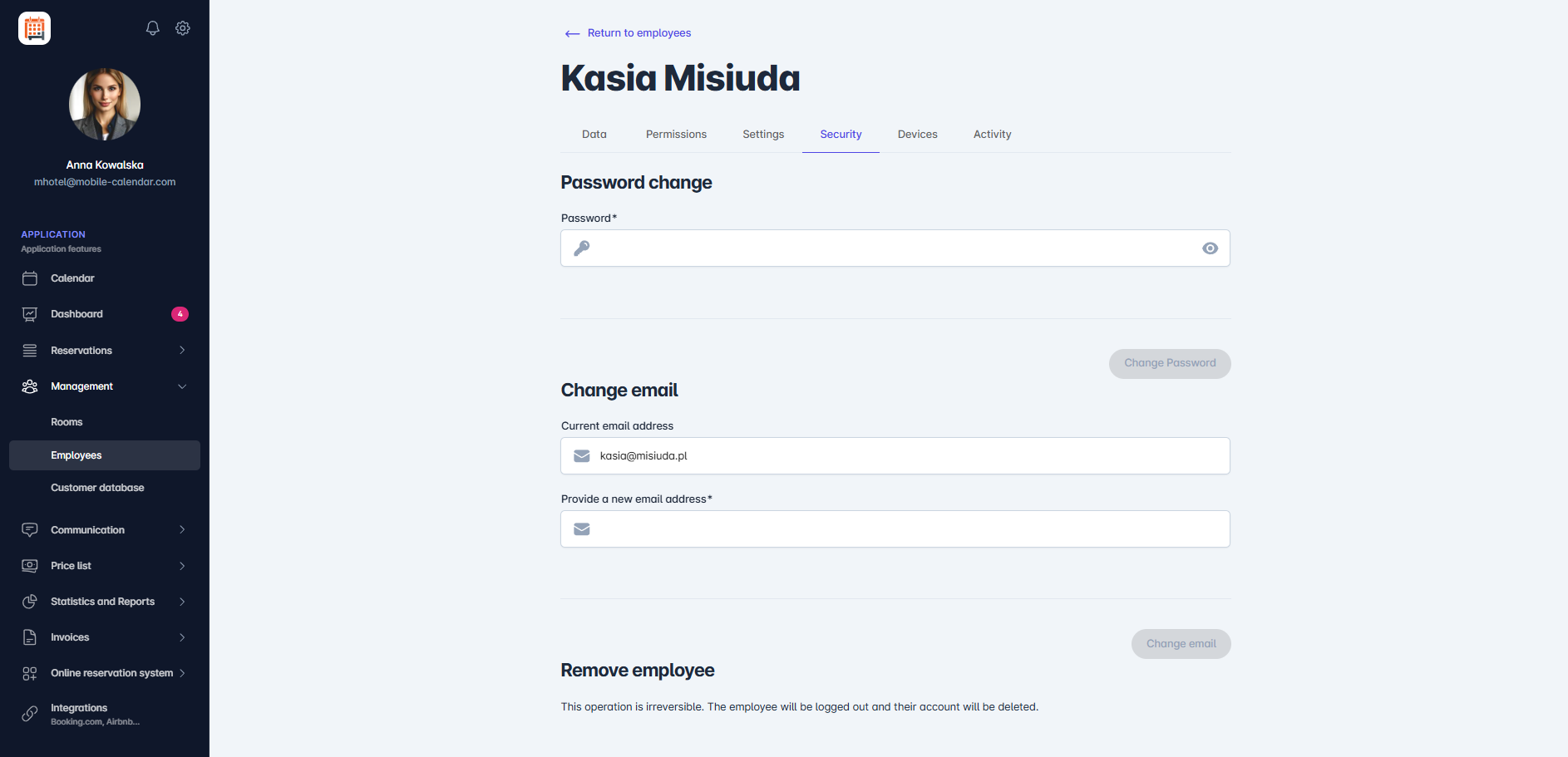
Change employee email In the Enter new email address field, type the new email.
Click the Change email button.
- A confirmation message regarding the email change will appear in the center of the screen.
- Click the Change email button again.
- A confirmation message regarding the email change will appear in the center of the screen.
The email has been changed.

Mobile Application
Introduction
You can change the email address an employee uses to log in to mobile-calendar on the Security tab of their form.
Instructions
In the bottom menu, go to the More tab.
Go to Management -> Employees.
Tap the employee in the list.
Tap the Security card, then Change email address.

- In the Provide a new email address field, enter the new address and tap the Change email button.

In the "Change email address" window, tap the Change email button.
The employee will log in using the new address.
Was this article helpful?
Ask AI about this article
Choose an assistant. It opens with a ready-made question, reads this article and answers your questions.
Ask AI about this article
Choose an assistant. It opens with a ready-made question, reads this article and answers your questions.