

 Ask AI


Employee Devices
Choose an assistant. It opens with a ready-made question, reads this article and answers your questions.
Open in ChatGPT (opens in a new tab) Open in Claude (opens in a new tab) Open in Perplexity (opens in a new tab) Open in Gemini (opens in a new tab) Open in Grok (opens in a new tab) View as MarkdownChoose an assistant. It opens with a ready-made question, reads this article and answers your questions.
Open in ChatGPT (opens in a new tab) Open in Claude (opens in a new tab) Open in Perplexity (opens in a new tab) Open in Gemini (opens in a new tab) Open in Grok (opens in a new tab) View as MarkdownOn this page
On this page
Web Application
Introduction
The Employee Devices tab allows management of the devices on which the user is logged into their account. This security-enhancing functionality is particularly important in situations where unauthorized access is suspected.
Instructions
Go to the Management -> Employees tab.
Click on the selected employee to see which devices they are logged into.
The employee edit form will appear on the screen, consisting of 6 tabs: Data, Permissions, Settings, Security, Devices, Activity.
- Go to the Devices tab. From this level, you can monitor all active logins and log the user out from the device.
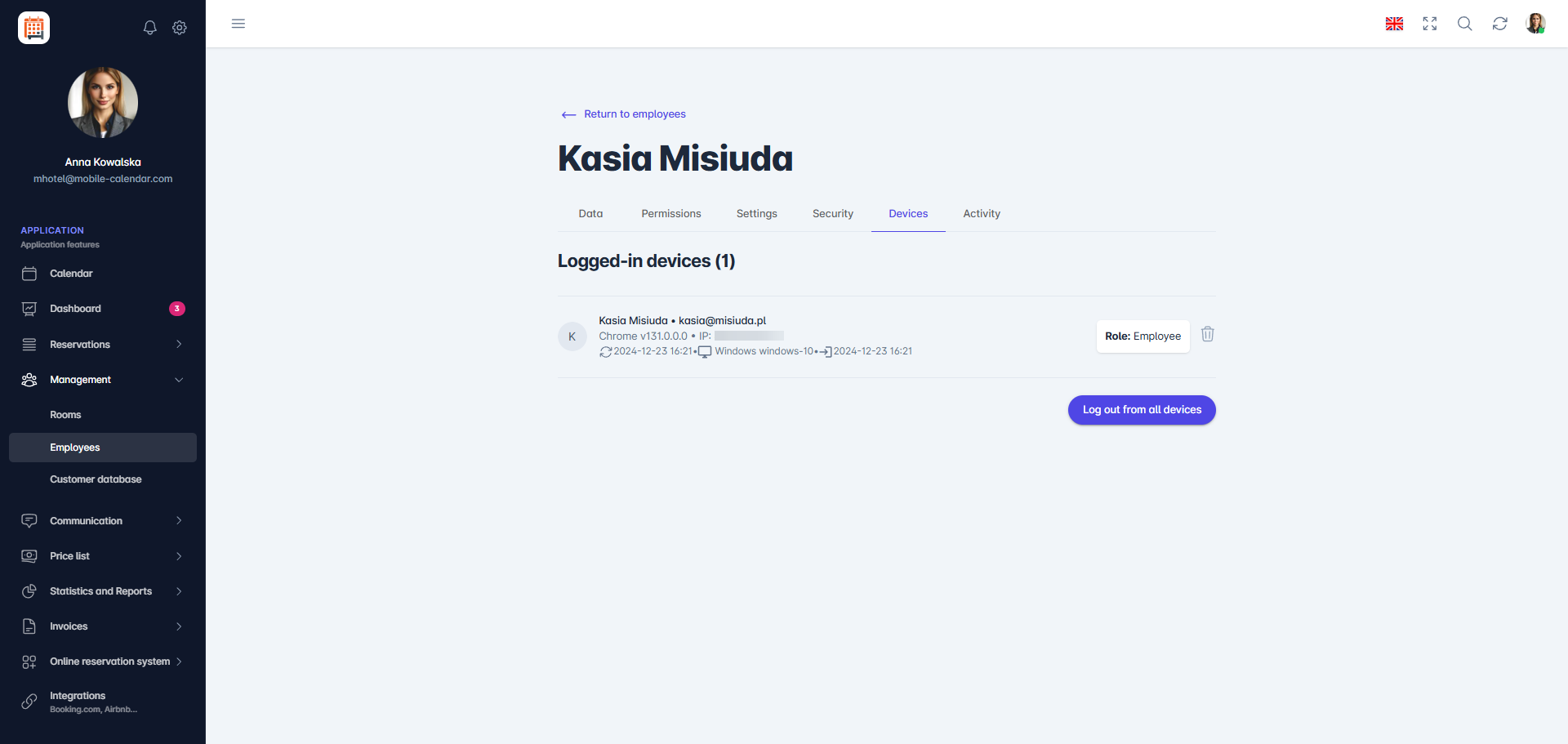
Employee Devices - Log out from one device: For the specific device, click the Trash icon button on the right side.
- Log out from all devices: click the Log out from all devices button.

Mobile Application
Introduction
On the Devices tab, you can check which devices an employee is logged in on and log them out, for example, if they lose their phone.
Instructions
In the bottom menu, go to the More tab.
Go to Management -> Employees.
Tap the employee in the list.
The employee form will appear. Swipe the tab bar to the left and tap the Devices tab.
A list of the employee's devices will appear, showing the name, model, IP address, and date of the last sync and login. To find a device, use the Search device... field.

Log out of all devices
Below the device list, tap Log out.
In the "Notice!" window, tap Confirm.
The employee will be logged out of all devices, and the message "No devices" will appear on the screen.
Was this article helpful?
Ask AI about this article
Choose an assistant. It opens with a ready-made question, reads this article and answers your questions.
Ask AI about this article
Choose an assistant. It opens with a ready-made question, reads this article and answers your questions.