

 Ask AI


Room information
Choose an assistant. It opens with a ready-made question, reads this article and answers your questions.
Open in ChatGPT (opens in a new tab) Open in Claude (opens in a new tab) Open in Perplexity (opens in a new tab) Open in Gemini (opens in a new tab) Open in Grok (opens in a new tab) View as MarkdownChoose an assistant. It opens with a ready-made question, reads this article and answers your questions.
Open in ChatGPT (opens in a new tab) Open in Claude (opens in a new tab) Open in Perplexity (opens in a new tab) Open in Gemini (opens in a new tab) Open in Grok (opens in a new tab) View as MarkdownOn this page
On this page
Web Application
Introduction
The Information tab in the booking system allows for easy and intuitive management of data pertaining to each room. With this feature, you can precisely control what information is available to guests and also enter descriptions in multiple languages to enhance the appeal of your offering in the international market.
Instructions
Information Tab
In the Information tab, the user has the ability to manage the data concerning the room. To make a room available in the online booking system, simply click the Toggle named "Publish in the offer".
The Description field is used to describe the room. To add a description in multiple languages, Click the box labeled "Show other languages" and select the appropriate option from the dropdown list, e.g., English. Then, enter the text in English.
The description is saved automatically. A user of the online booking system who selects English will see the provided information in that language.
At the bottom of the form, the user has the option to add amenities to the room. From the list of available amenities, simply Click on the corresponding item, e.g., Air Conditioning. A checkmark will appear in the adjacent box, confirming that the functionality has been added.
Adding Room Information from the Calendar Tab:
Navigate to the Calendar tab.
Click on the room you want to edit.
A form will appear on the screen, click the Edit button.
An editing form for the room will appear on the right side of the screen. The form consists of 4 tabs: Details, Information, Cleaning, Photos.
Click on the Information tab and fill in the selected fields.
In the lower right corner of the form, click the Save Changes button.
The room will be updated.
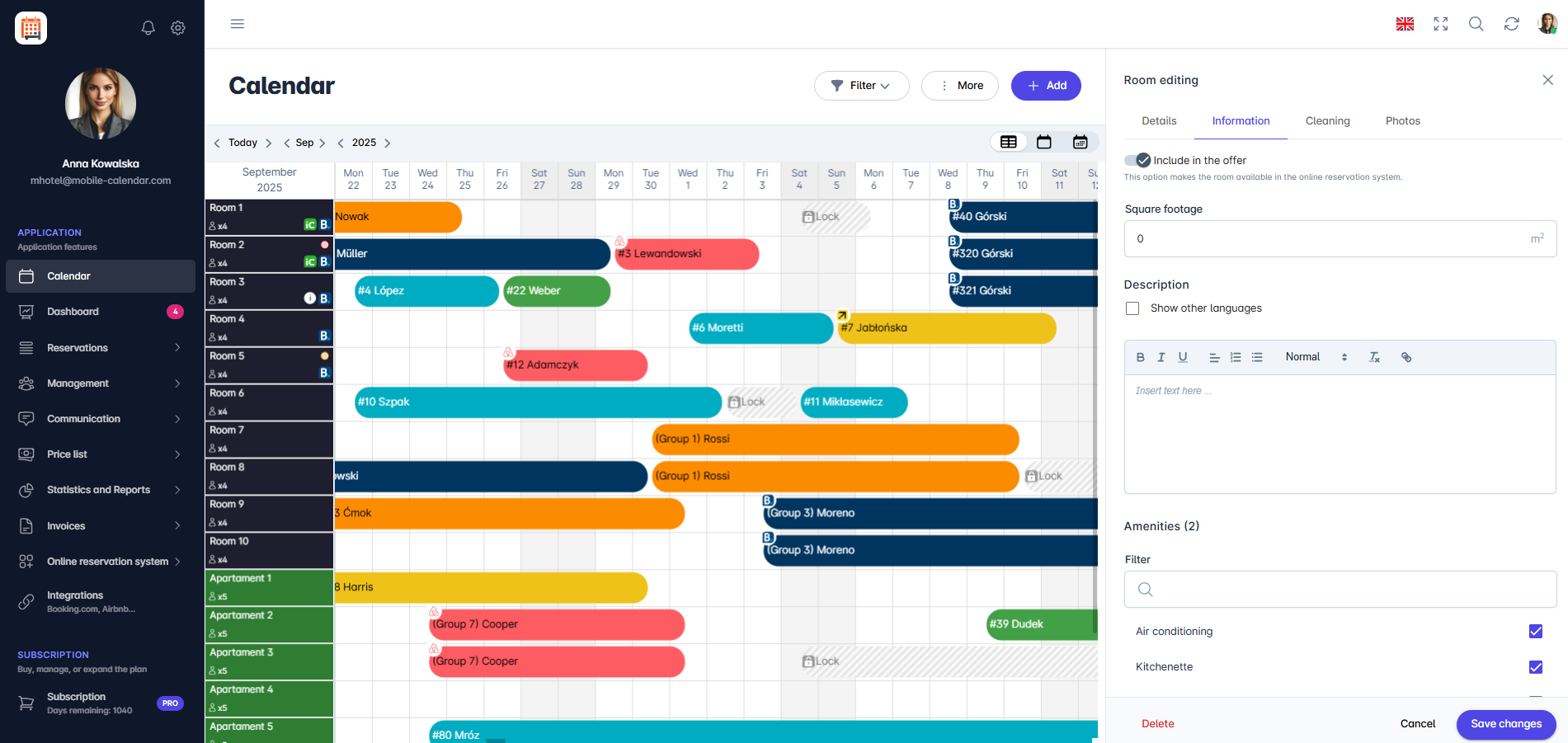
Editing information

Adding Room Information from the Management Tab:
Navigate to the Management -> Rooms tab.
Select the room you want to edit from the list.
Click the Notes icon (Details column).
An editing form for the room will appear on the right side of the screen. The form consists of 4 tabs: Details, Information, Cleaning, Photos.
Click on the Information tab and fill in the selected fields.
In the lower right corner of the form, click the Save Changes button.
The room will be updated.
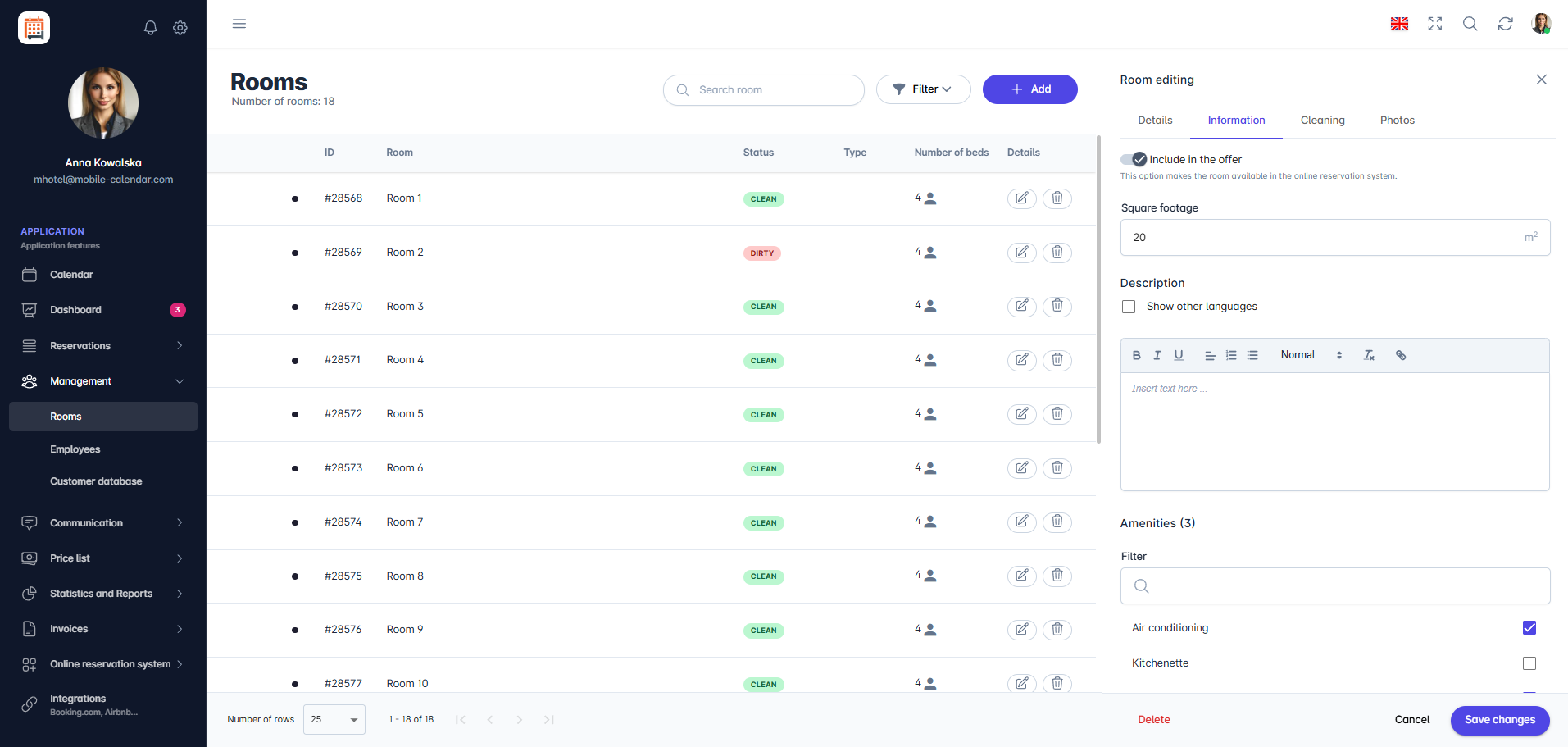
Editing information

Mobile Application
Introduction
On the Information and Amenities cards in the room form, enter the size, description, and amenities. Here, you can also decide whether the room is visible in the online offer.
Instructions
In the bottom menu, go to the More tab.
Go to Management -> Rooms.
Click the room in the list.
Click the Information card.
Use the Include in the online offer switch to enable or disable the room in the offer.
Enter the room area in the Size (m²) field.
Click the description field, enter the text, and click Done. To add a description in another language, turn on the Show other languages switch and select a language.

Click the Amenities card and select the amenities. To quickly find an item, use the Filter amenities... field.
Click Save.

- Your changes will be saved, and the room list will appear on the screen.
Was this article helpful?
Ask AI about this article
Choose an assistant. It opens with a ready-made question, reads this article and answers your questions.
Ask AI about this article
Choose an assistant. It opens with a ready-made question, reads this article and answers your questions.