

 Ask AI


Adding client
Choose an assistant. It opens with a ready-made question, reads this article and answers your questions.
Open in ChatGPT (opens in a new tab) Open in Claude (opens in a new tab) Open in Perplexity (opens in a new tab) Open in Gemini (opens in a new tab) Open in Grok (opens in a new tab) View as MarkdownChoose an assistant. It opens with a ready-made question, reads this article and answers your questions.
Open in ChatGPT (opens in a new tab) Open in Claude (opens in a new tab) Open in Perplexity (opens in a new tab) Open in Gemini (opens in a new tab) Open in Grok (opens in a new tab) View as MarkdownOn this page
On this page
Web Application
Introduction
The ability to add new customers to the database is a key element of effective business relationship management. Entering necessary information such as first name, last name, contact details, and other relevant details facilitates quick access to key data. The process of adding customers is intuitive and fast, promoting the effective expansion of the customer base.
Instructions
Go to the Management -> Customer Database tab.
In the upper right corner, click the Add button.
A customer addition form will appear on the right side.
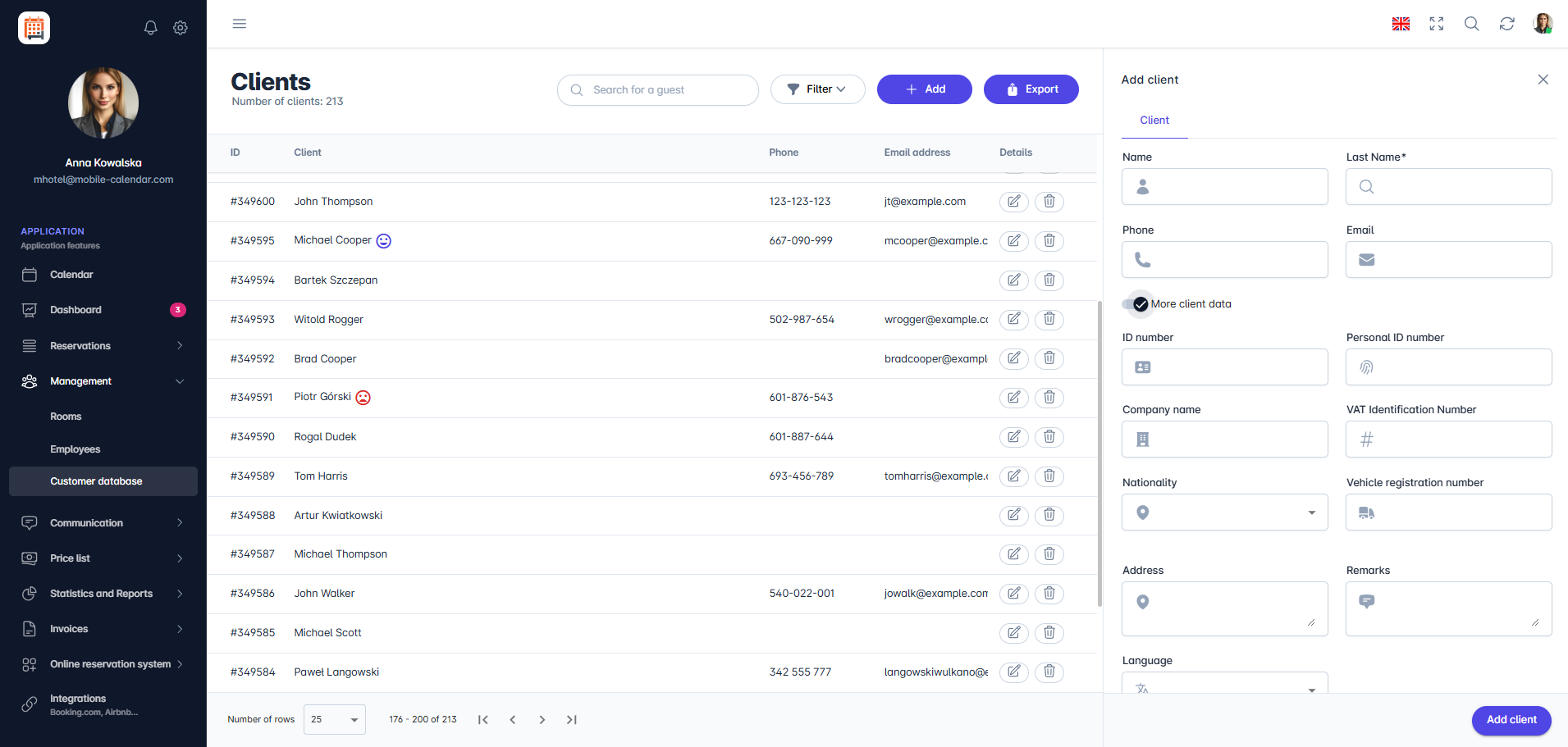
Adding a customer The form contains basic information such as First Name, Last Name, Phone Number, and Email Address.
Below the basic data, there is a slider for More Customer Data. Enabling it will display additional detailed information, such as Vehicle Registration Number or Identity Card Number.
- The detailed data also includes Customer Status, with three options to choose from: none, regular customer, or unwanted customer.
- Selecting the Regular Customer or Unwanted Customer option will cause the system to automatically detect this information during the next booking attempt and display the appropriate message.
To add a customer, fill in the required field Last Name. The other fields are optional.
Click the Add Customer button.
The customer will be added to the customer database.

Mobile Application
Introduction
You can add a client in the Client Database. Only the last name is required; you can add the remaining details later.
Instructions
In the bottom menu, go to the More tab.
Go to Management -> Clients.
Tap the + button in the bottom-right corner.

The "New Client" form will appear on the screen.
Enter the client's first name in the First name field.
Enter the client's last name in the Last name field.
Enter the contact details in the Phone and Email fields.
To add the remaining details, tap More client data. There you can find, among other things, an ID number, company data, Nationality, Vehicle registration number, Notes, and Customer status.
Tap the Save button.

- The client will be added to the list.
Was this article helpful?
Ask AI about this article
Choose an assistant. It opens with a ready-made question, reads this article and answers your questions.
Ask AI about this article
Choose an assistant. It opens with a ready-made question, reads this article and answers your questions.