

 Ask AI


Reservation History
Choose an assistant. It opens with a ready-made question, reads this article and answers your questions.
Open in ChatGPT (opens in a new tab) Open in Claude (opens in a new tab) Open in Perplexity (opens in a new tab) Open in Gemini (opens in a new tab) Open in Grok (opens in a new tab) View as MarkdownChoose an assistant. It opens with a ready-made question, reads this article and answers your questions.
Open in ChatGPT (opens in a new tab) Open in Claude (opens in a new tab) Open in Perplexity (opens in a new tab) Open in Gemini (opens in a new tab) Open in Grok (opens in a new tab) View as MarkdownOn this page
On this page
Web Application
Introduction
The feature is available with the Professional plan. You can compare plans in the article Which features are included in each subscription?.
In mobile-calendar, you can review reservation history to see all booking-related actions, such as adding, editing, and deleting bookings. This feature gives you full control over booking activity and makes it easy to track any changes made in the system.
Instructions
Go to the Reservations -> History tab.
Reservation history will appear on the screen.
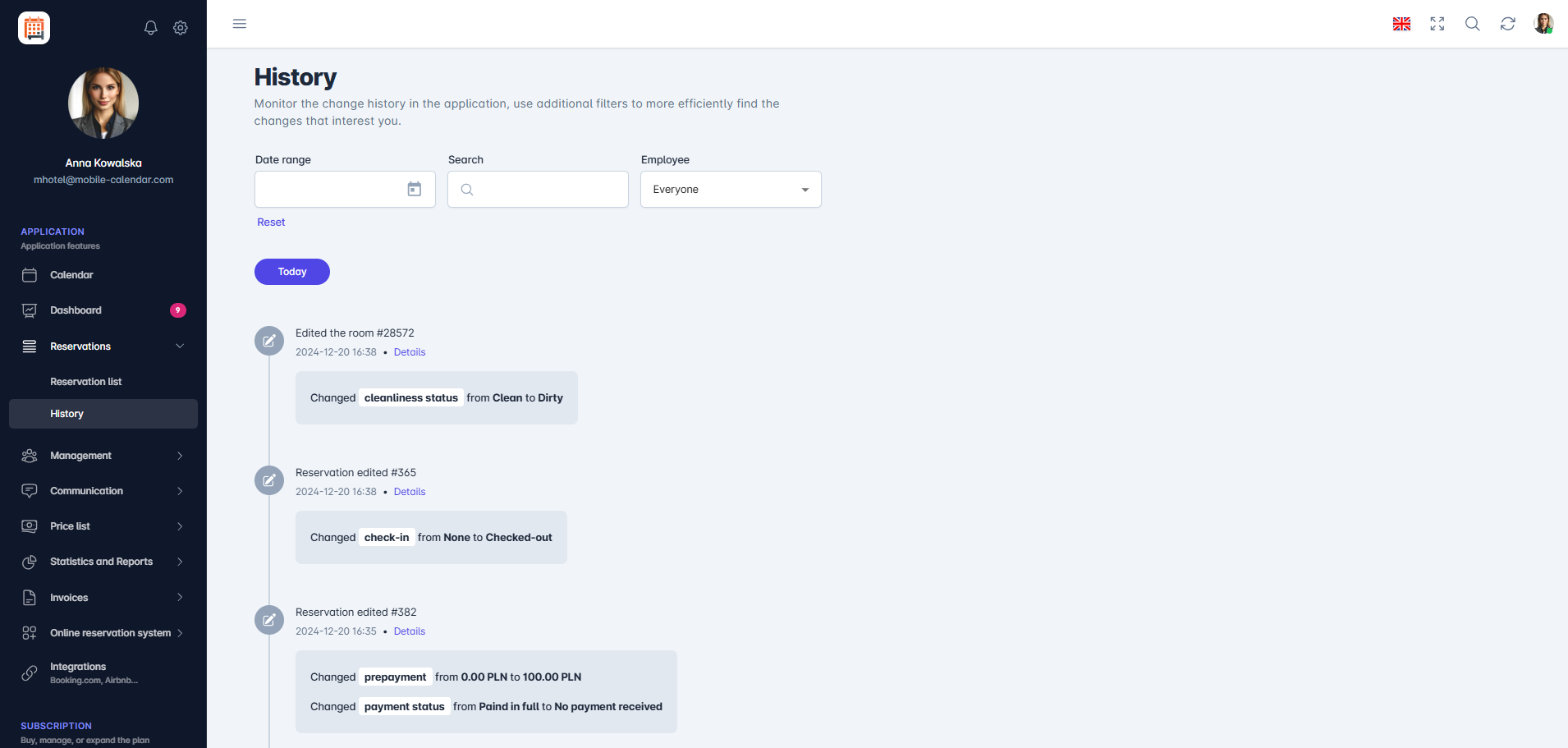
Reservation history Click the Date range field to open a calendar where you can select a specific time period. Select the dates you’re interested in to narrow the list of changes to a specific period.
Enter a keyword in the Search field, such as a reservation ID or the client’s last name. The system will automatically display matching results.
Click the Employee field and select an employee from the drop-down list to see only the changes made by that person.

Mobile Application
Introduction
History shows when a reservation was added or changed and exactly what was changed. You can view the history of one reservation or the entire account.
Instructions
History of one reservation
In the bottom menu, go to the Calendar tab and tap the reservation bar.
In the top-right corner of the form, tap the Three-dot icon.
Select History from the list.

- A list of changes will appear on the screen, starting with the latest. Tap an entry to expand the change details.

History for the entire account
- In the bottom menu, go to More -> Reservations -> History.

A list of changes to the account will appear on the screen: reservations, blocks, and clients.
Tap the Magnifying glass icon (1) to search for an entry.
Tap the Filter icon (2) to narrow the list by date using the From and To fields, or by person using the Employee field. Then tap Apply.

Was this article helpful?
Ask AI about this article
Choose an assistant. It opens with a ready-made question, reads this article and answers your questions.
Ask AI about this article
Choose an assistant. It opens with a ready-made question, reads this article and answers your questions.