

 Ask AI


Calendar views
Choose an assistant. It opens with a ready-made question, reads this article and answers your questions.
Open in ChatGPT (opens in a new tab) Open in Claude (opens in a new tab) Open in Perplexity (opens in a new tab) Open in Gemini (opens in a new tab) Open in Grok (opens in a new tab) View as MarkdownChoose an assistant. It opens with a ready-made question, reads this article and answers your questions.
Open in ChatGPT (opens in a new tab) Open in Claude (opens in a new tab) Open in Perplexity (opens in a new tab) Open in Gemini (opens in a new tab) Open in Grok (opens in a new tab) View as MarkdownOn this page
On this page
Web Application
Introduction
In mobile-calendar, there are three calendar views available, making it easier to manage bookings. You can display the calendar:
- for all rooms in the default view,
- for a selected room in the monthly view,
- for a selected room in the yearly view.
Instructions
Go to the Calendar tab.
On the right side of the screen, there are three options to choose the calendar view.

View 1: Default View
Upon entering the Calendar tab, the default view will be automatically enabled.
In this view, all rooms and their bookings for the selected period are visible.
The view allows you to browse details such as the booking name and booking source.
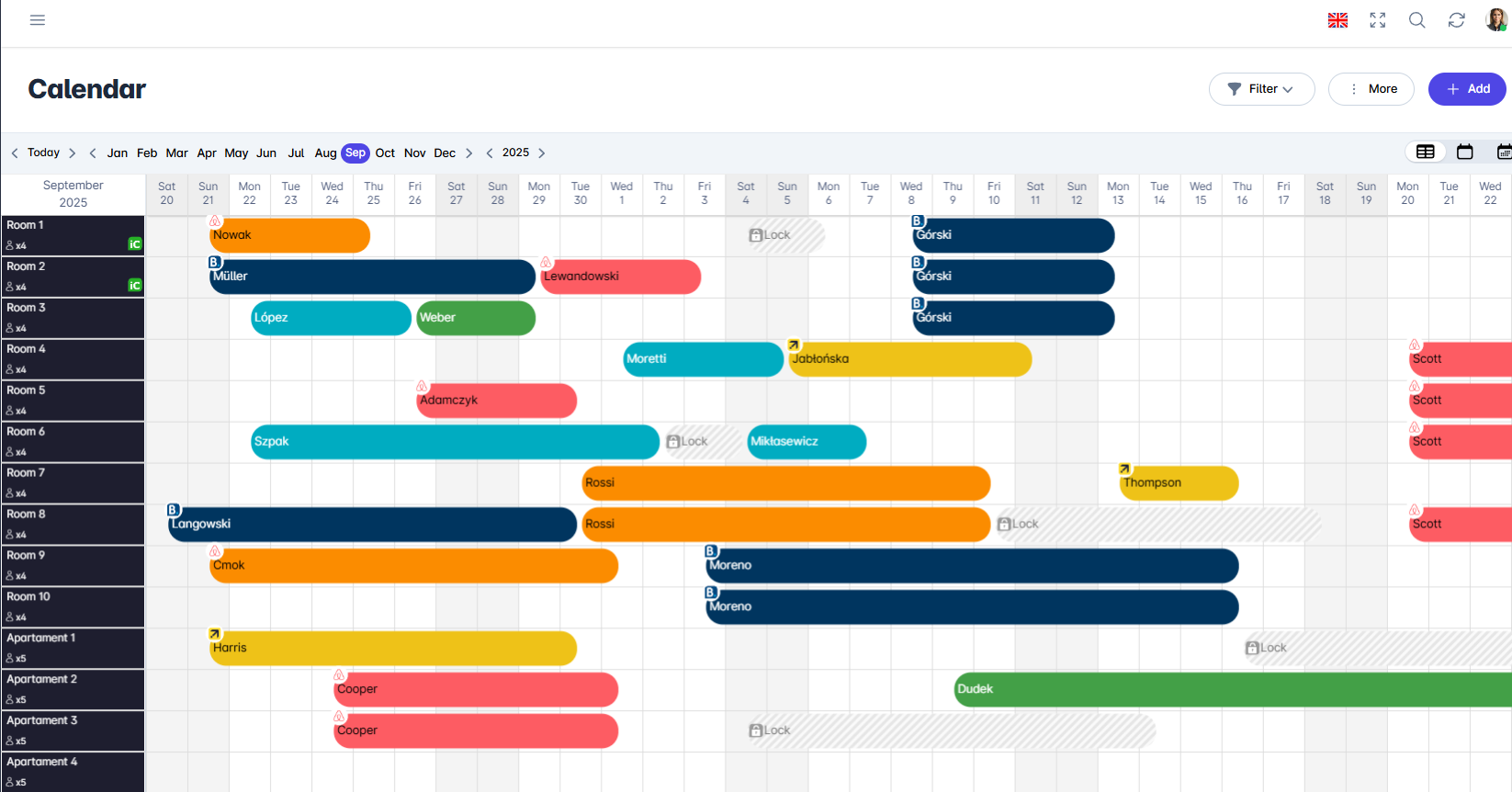
1 calendar view

View 2: Monthly View
In this view, the selected room and its bookings for the chosen period are visible.
To enable the monthly view, click the second calendar icon.
In the upper right corner, open the dropdown list and select the room you want to display.
The view allows you to preview the selected room with details such as the booking name and booking source.
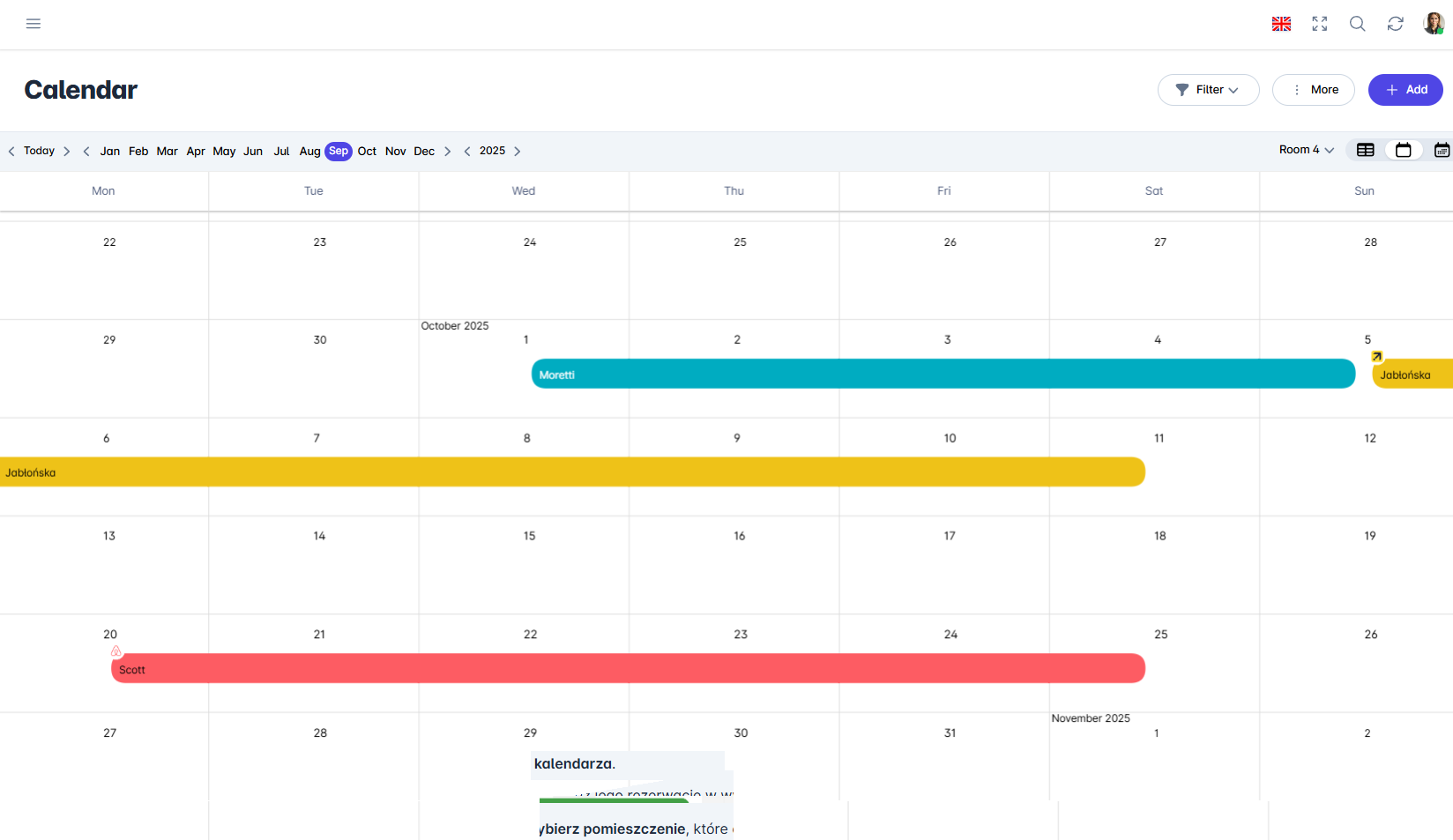
2 calendar view

View 3: Yearly View
To enable the yearly view, click the third calendar icon.
In the upper right corner, create the dropdown list and select the room you want to display.
The view allows you to review the availability of the selected room from a yearly perspective.
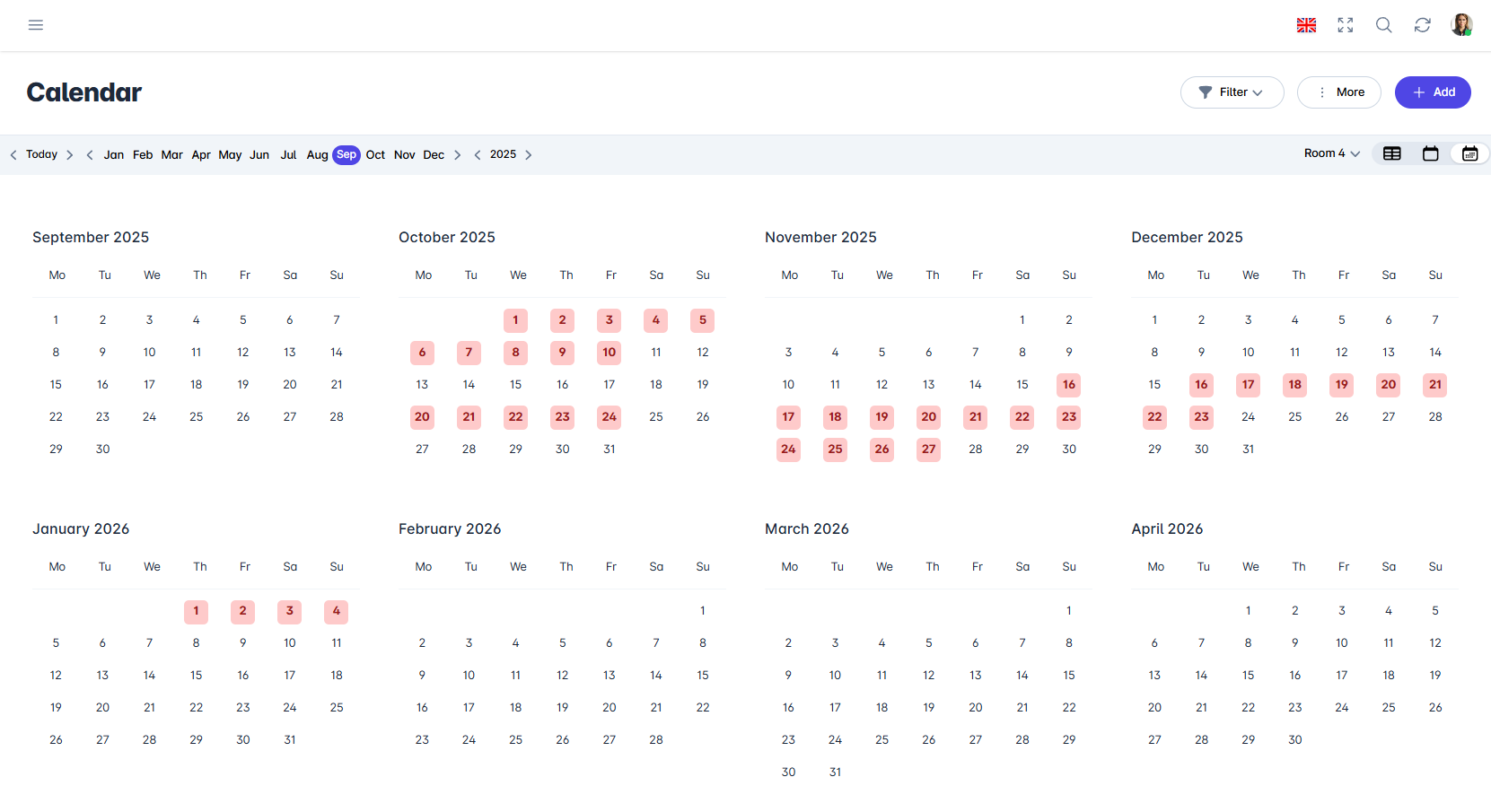
3 calendar view

Mobile Application
Introduction
The Calendar has two views:
- All rooms: days horizontally, and rooms in rows,
- One room: the entire month for the selected room.
Instructions
In the bottom menu, go to the Calendar tab.
In the top-right corner, tap the view icon.
In the "Calendar view" window, select All rooms or One room.

One-room view
- Tap the room name (1) to select it from the list, or go to the next room using the arrows (2).

Change the month using the arrows (3) or by tapping its name.
Tap the reservation bar to open its form.
To return to the all-rooms view, tap the View icon (4).
Was this article helpful?
Ask AI about this article
Choose an assistant. It opens with a ready-made question, reads this article and answers your questions.
Ask AI about this article
Choose an assistant. It opens with a ready-made question, reads this article and answers your questions.