

 Ask AI


Export data
Choose an assistant. It opens with a ready-made question, reads this article and answers your questions.
Open in ChatGPT (opens in a new tab) Open in Claude (opens in a new tab) Open in Perplexity (opens in a new tab) Open in Gemini (opens in a new tab) Open in Grok (opens in a new tab) View as MarkdownChoose an assistant. It opens with a ready-made question, reads this article and answers your questions.
Open in ChatGPT (opens in a new tab) Open in Claude (opens in a new tab) Open in Perplexity (opens in a new tab) Open in Gemini (opens in a new tab) Open in Grok (opens in a new tab) View as MarkdownOn this page
On this page
Web Application
Introduction
The mobile-calendar features a reservation export function that allows you to save data in a CSV file. This enables you to easily transfer reservation information to a spreadsheet.
Instructions
Go to the Reservations tab -> Reservation List.
In the upper right corner, click the More button -> Export.
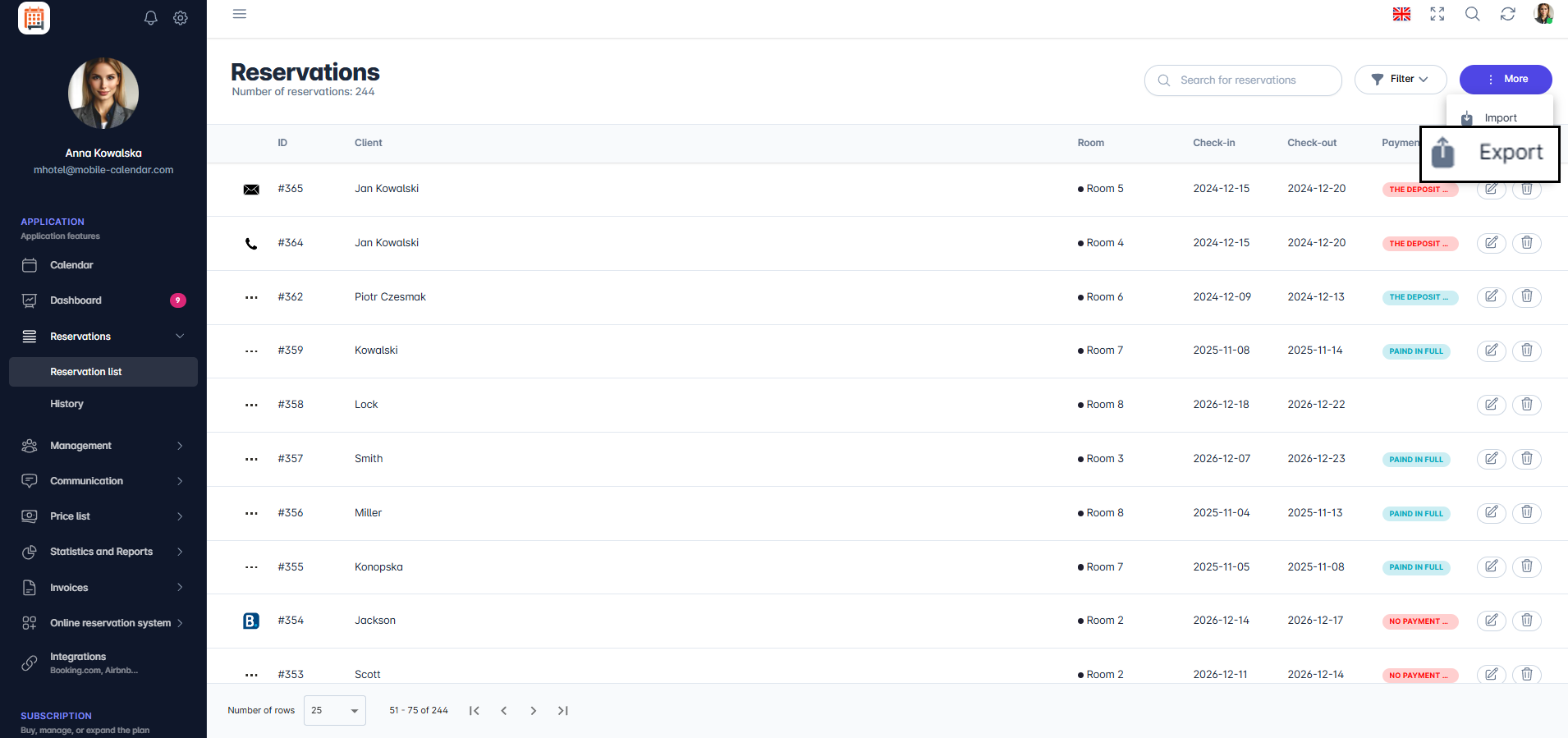
Export Reservations

- The CSV file will be downloaded.
Mobile Application
Introduction
You can save the reservation list for a given day to a spreadsheet from the tiles on the Dashboard. You can choose Excel, CSV, or OpenDocument files.
Instructions
In the bottom menu, go to the Dashboard tab.
Tap the tile with the list you want to export, for example Arrivals.
Use the arrows to select a day and go to the appropriate list tab.
Tap the Export icon in the top-right corner.

- In the "Export to spreadsheet" window, select a format: Excel (XLSX), CSV, or OpenDocument (ODS).

- The system sharing window will appear. Save the file to your phone or share it with another app.

Was this article helpful?
Ask AI about this article
Choose an assistant. It opens with a ready-made question, reads this article and answers your questions.
Ask AI about this article
Choose an assistant. It opens with a ready-made question, reads this article and answers your questions.