

 Ask AI


Basic information
Choose an assistant. It opens with a ready-made question, reads this article and answers your questions.
Open in ChatGPT (opens in a new tab) Open in Claude (opens in a new tab) Open in Perplexity (opens in a new tab) Open in Gemini (opens in a new tab) Open in Grok (opens in a new tab) View as MarkdownChoose an assistant. It opens with a ready-made question, reads this article and answers your questions.
Open in ChatGPT (opens in a new tab) Open in Claude (opens in a new tab) Open in Perplexity (opens in a new tab) Open in Gemini (opens in a new tab) Open in Grok (opens in a new tab) View as MarkdownOn this page
On this page
Web Application
Introduction
In the Dashboard panel, the user will find detailed information about payments, reservations, income, and occupancy.
The statistics include, among others, payments received and expected, the distribution of income across various categories, and guests' payment preferences.
Additionally, the occupancy section displays room occupancy, while statistics on the number of reservations, guests, and their nationalities help to better understand the guest profile.
Instructions
Go to the Dashboard tab
The Dashboard consists of two tabs: Dashboard and Cleaning.
Dashboard Tab
In the dashboard panel, data from today is displayed by default.
- To change the date, click on the date.
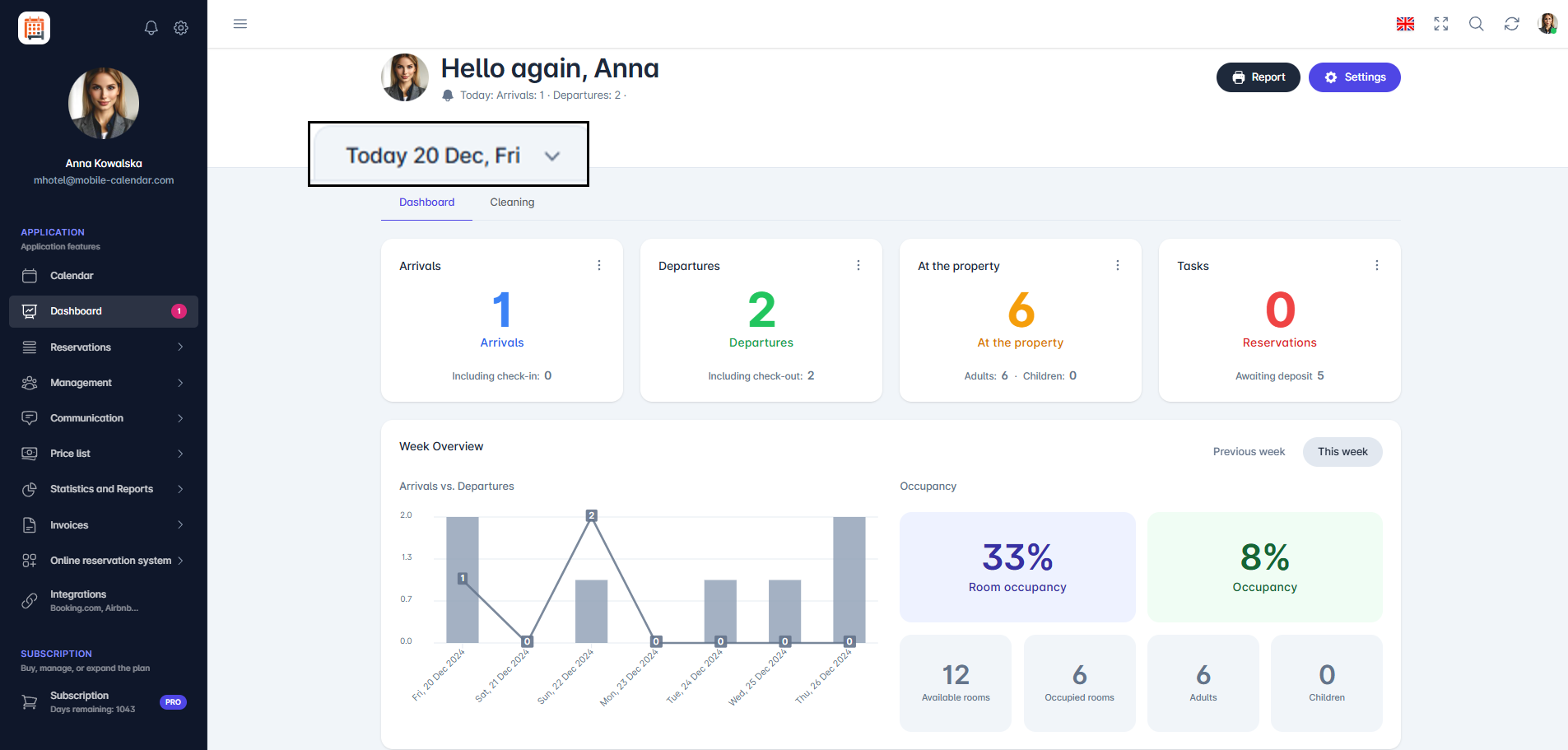
Date In the dashboard tab of the application, there are four cards that present current information about the state of reservations and guests:
- Arrivals: shows the number of guests arriving on that day, as well as the number of already checked-in guests.
- Departures: informs about the number of guests leaving that day and those who are already checked out.
- In property: contains details about the number of adults and children currently staying in the property.
- Deposits: Indicates the number of reservations for which the deposit payment deadline expires today, as well as the number of reservations where the deposit has not been paid.
Clicking on a card will cause a form to appear on the right side of the screen.
The Arrivals and Departures cards provide efficient management of guest arrivals and departures, as well as monitoring important information regarding reservations.
- The form consists of three tabs: All, Not Checked In, and Checked In.


- The In Property card allows viewing the list of guests currently staying in the property.
- The form contains one tab, All.

- The Deposits card allows a quick overview of deposit status.
- The form includes three tabs: All, No Deposit Paid, and Awaiting Deposit.

- To quickly change the reservation status, click on the Arrow next to the selected reservation, which will bring up a dropdown menu with options such as: Edit, History, Delete, Check In, Check Out, No Payment, Deposit Paid, Full Payment, Copy.
- Changing the reservation status automatically updates the information in the system, enabling swift and convenient management of reservations directly from the dashboard panel.
Weekly Overview
In the Weekly Overview section on the right side, there are tiles that reflect data for one selected day (according to the chosen date). They include:
- Occupancy: overall occupancy rate of the property in percentage.
- Room Occupancy: percentage of occupied rooms on that day.
- Seat Occupancy: number of seats occupied in the property.
- Available Rooms: number of rooms available for rent.
- Occupied Rooms: number of rooms currently occupied.
- Adults and Children: number of adults and children staying in the property.
- Occupancy: overall occupancy rate of the property in percentage.
In the Weekly Overview section on the left side, there is a chart that presents data regarding arrivals and departures in the selected week.
Hovering the cursor over any bar on the chart displays a detailed preview of the data, allowing for quick insight into the number of arrivals and departures on a given day.
On the right side of the calendar section, there is a button Previous Week (or -7, when a different date than today is set on the dashboard)
Clicking this button allows for a quick review of data for preceding weeks, facilitating a convenient comparison of occupancy over time.

Cleaning Tab
- To quickly change the status or task, Click on the arrow next to the selected room.
- A dropdown menu will appear on the screen with three room statuses: Clean, Dirty, In Cleaning and two tasks: Edit Information and Mark as Done.
- Changing the room status automatically updates the room's status on the list, and the corresponding icon will appear on the calendar, reflecting the current status of the room.
- Selecting the Edit Information option will open a text field to update additional information, which must be saved by clicking the Edit button. Meanwhile, the Mark as Done option allows concluding the assigned task, which will automatically remove it from the task list.
- A dropdown menu will appear on the screen with three room statuses: Clean, Dirty, In Cleaning and two tasks: Edit Information and Mark as Done.

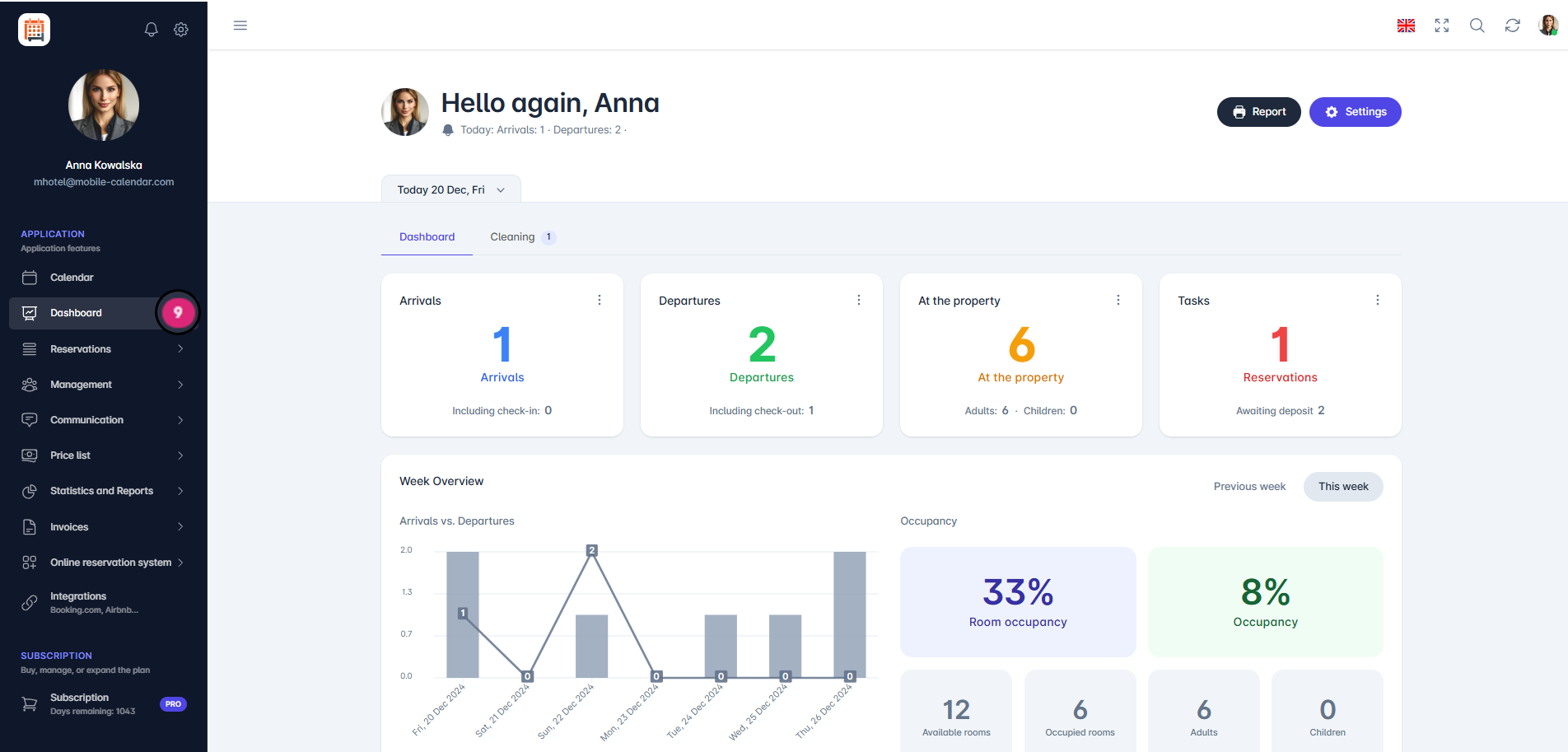
- In the left main menu, next to the Dashboard tab, a number will appear indicating that there are assigned tasks or the status of the room is Dirty/In Cleaning. The number will disappear when all rooms are clean and all tasks are completed.
Tasks to be Done
In the left menu, next to the “Dashboard” tab, a number indicating the number of tasks to be done will be displayed.
For example, the number “9” indicates nine tasks to accomplish, such as upcoming guest arrivals, check-outs, rooms to be cleaned, or reservations for which deposits have not been paid.
Tasks to be Done

Mobile Application
Introduction
The Dashboard shows the most important information for the selected day: arrivals, departures, guests at the property, deposits, cancelled reservations and occupancy.
Instructions
- In the bottom menu, go to the Dashboard tab.

At the top of the screen, you’ll find:
The Shortcuts icon: quick access to the price list, rooms, messages, statistics, clients and settings.
The megaphone icon: a list of announcements.
The bell icon: a list of notifications.
The date bar: use the arrows to change the day, or tap the date to open the calendar.
When reservation changes arrive from other sources, you’ll also see an icon showing the number of new changes next to it. Tap it to open the New changes list.
Tiles
Arrivals and Departures: reservations for that day and the number of checked-in and checked-out guests.
At the property: guests staying at the property.
Deposits: reservations awaiting a deposit.
Cancelled: reservations cancelled on that day.
Occupancy: the percentage of occupied rooms.
Below, you’ll find the Week Overview chart showing arrivals and departures.
List from a tile
Tap a tile, for example, Arrivals.
In the list, select a tab, for example, Not checked-in or Checked-in. Use the arrows to change the day.
On a card, tap Edit to open the reservation, or tap the three-dot icon to change its status.

Other tabs
- The Cleaning and Quick notes tabs are described in separate articles.
Was this article helpful?
Ask AI about this article
Choose an assistant. It opens with a ready-made question, reads this article and answers your questions.
Ask AI about this article
Choose an assistant. It opens with a ready-made question, reads this article and answers your questions.