

 Ask AI


Import data
Choose an assistant. It opens with a ready-made question, reads this article and answers your questions.
Open in ChatGPT (opens in a new tab) Open in Claude (opens in a new tab) Open in Perplexity (opens in a new tab) Open in Gemini (opens in a new tab) Open in Grok (opens in a new tab) View as MarkdownOn this page
Introduction
Importing reservations from another system allows for the quick and easy transfer of data into the mobile-calendar application. The process preserves all key information and enables a smooth start to operations. It is enough to prepare a data file, match the appropriate fields during the import configuration, and complete the process in just a few steps.
Instructions
Go to the Reservations tab -> Reservation List.
In the upper right corner, click the More button -> Import.
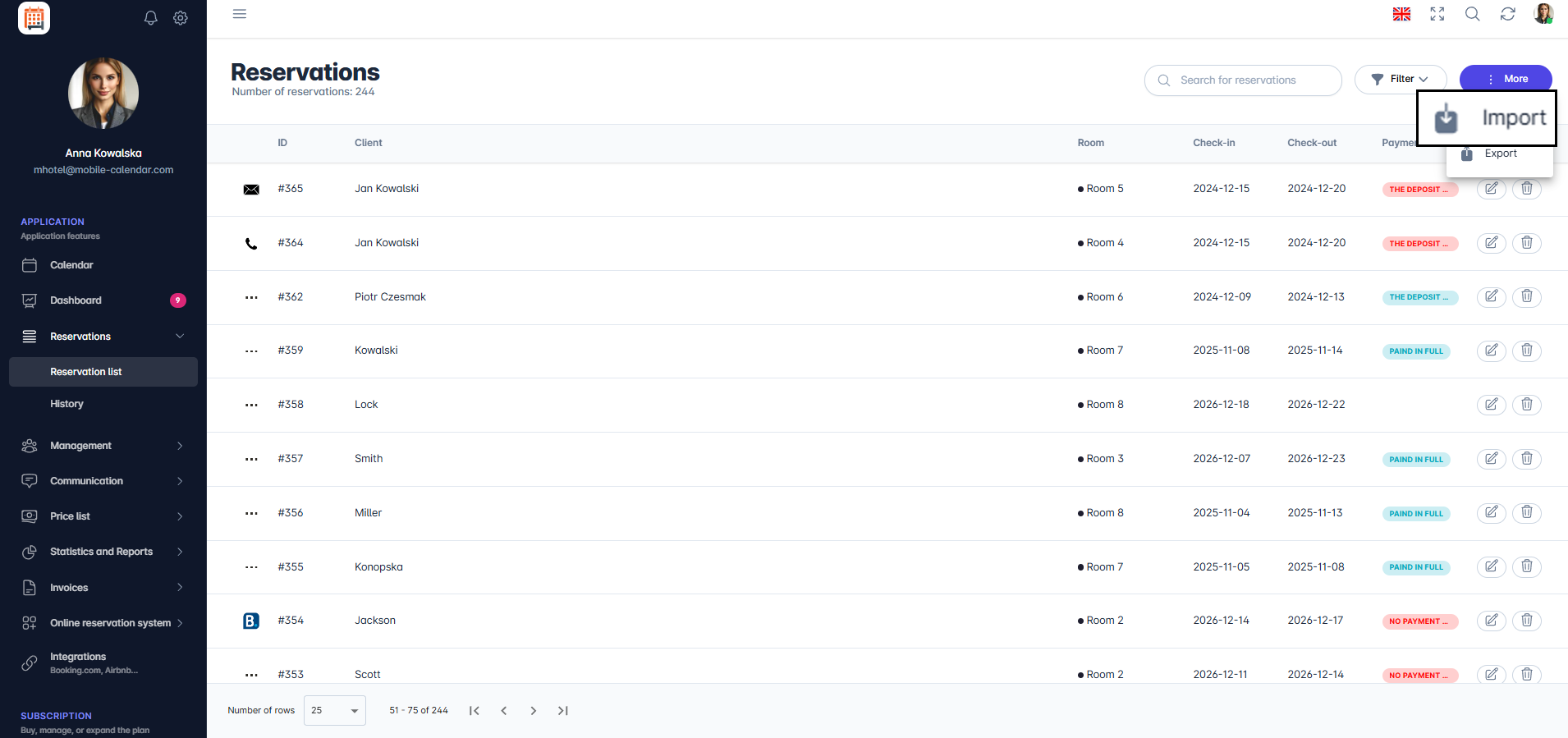
Import reservations

Step 1 - Upload Files
- To add a CSV file, click in the designated area, which will open the file browser, or drag the selected file directly into this area.

Step 2 - Specify Fields
- Map the fields from the imported file to their corresponding fields in the mobile-calendar system.
- Required fields are: Room Identifier, Check-in Date, and Check-out Date.
- For each of these fields, the user selects the appropriate variable from the file by clicking on the dropdown list.
- Example: in the mobile-calendar system, the "Room Identifier" field should be mapped to the variable in the CSV file, which in this particular file is named "RoomId".

Step 3 - Match Rooms
- Match the rooms found in the exported file to their corresponding rooms in the mobile-calendar system.
- The user should assign each room from the exported file to its corresponding room in mobile-calendar by selecting the appropriate room from the dropdown list.
- Example: the room with identifier 1612638 (assigned in the previous system) should be matched to "Room 1" in mobile-calendar.

Step 4 - Summary
The screen displays the number of reservations that will be added to the calendar after the import is completed.
Click the Start Import button.

- The reservations will be added to the mobile-calendar.
Was this article helpful?
Ask AI about this article
Choose an assistant. It opens with a ready-made question, reads this article and answers your questions.