

 Ask AI


Basic information
Choose an assistant. It opens with a ready-made question, reads this article and answers your questions.
Open in ChatGPT (opens in a new tab) Open in Claude (opens in a new tab) Open in Perplexity (opens in a new tab) Open in Gemini (opens in a new tab) Open in Grok (opens in a new tab) View as MarkdownChoose an assistant. It opens with a ready-made question, reads this article and answers your questions.
Open in ChatGPT (opens in a new tab) Open in Claude (opens in a new tab) Open in Perplexity (opens in a new tab) Open in Gemini (opens in a new tab) Open in Grok (opens in a new tab) View as MarkdownOn this page
Web Application
Basic Calendar Information
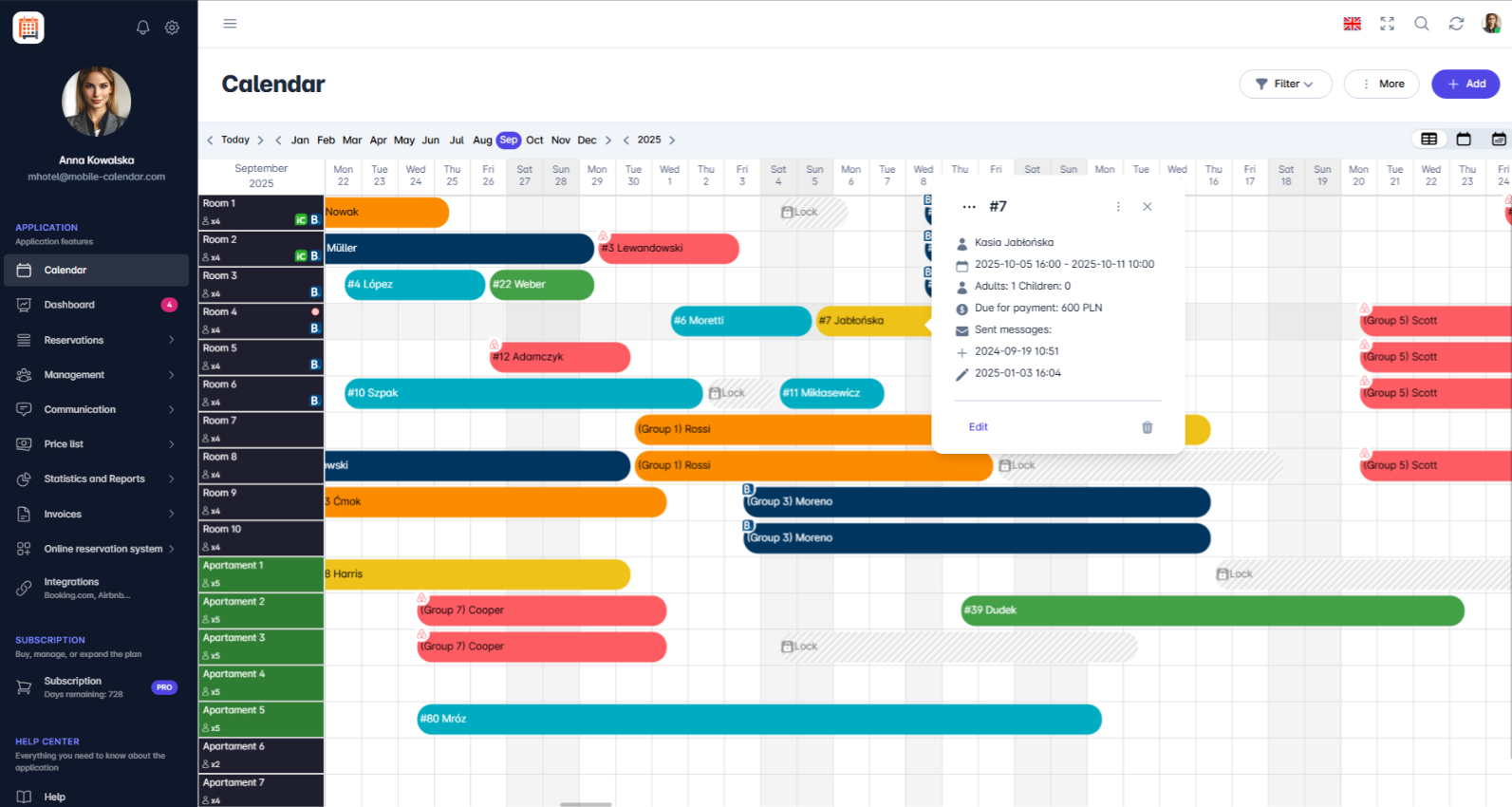
The calendar in our application is a versatile tool that enables efficient reservation management in a clear and intuitive manner. With various functionalities, users can conveniently track and manage bookings.
In the mobile calendar, there are three calendar views available to facilitate reservation management. You can view the calendar:
- for all rooms in the default view,
- for a selected room in the monthly view,
- for a selected room in the annual view.
The calendar allows for the use of a "drag and drop" option, which significantly simplifies transferring reservations between dates and rooms without the need for manual editing.
The calendar automatically displays the source of each reservation, which is particularly useful when managing bookings from different platforms, such as Booking.com or Airbnb.

- Users can also easily assess the guest check-in status without needing to open the reservation details.

Additionally, the calendar offers the option for visual customization by setting custom colors for different reservation statuses.
Finally, the quick view feature for reservations provides immediate access to key information about bookings, enhancing efficiency and user comfort.
Reservation Label View

Thanks to all these functionalities, the calendar becomes not just a management tool, but also an ally in organizing work.
Mobile Application
Introduction
The calendar displays rooms in rows and days in columns. You can see bookings and blocked dates on the bars, while the top bar lets you select a date, filters, and views.
Instructions
- In the bottom menu, go to the Calendar tab.

On the screen, you’ll find:
The month name: tap it to go to a different month and year.
The icon with the day number: tap it to return to today’s date.
The Filter icon: tap it to narrow down the list of rooms.
The refresh icon: tap it to get the latest data.
The view icon: tap it to switch the calendar view.
The + button: tap it to add a booking or blocked date.
Moving between dates
Swipe sideways to change days, and up or down to see more rooms.
To go to a date further away, tap the month name, select the year using the arrows, then tap the month.

Booking indicators
The booking color depends on the payment status.
The icon in the corner of a booking shows its source, for example, phone or Airbnb.
The text "check-in/check out" indicates a checked-in or checked-out guest.
A gray booking with diagonal stripes is a blocked date.
Room menu
Tap the room name in the left column.
A menu will appear on the screen with the Edit and Set prices options, the cleaning status, and a "Quick note" section.

Was this article helpful?
Ask AI about this article
Choose an assistant. It opens with a ready-made question, reads this article and answers your questions.
Ask AI about this article
Choose an assistant. It opens with a ready-made question, reads this article and answers your questions.