

 Ask AI


Mobi: commands and approval
Choose an assistant. It opens with a ready-made question, reads this article and answers your questions.
Open in ChatGPT (opens in a new tab) Open in Claude (opens in a new tab) Open in Perplexity (opens in a new tab) Open in Gemini (opens in a new tab) Open in Grok (opens in a new tab) View as MarkdownChoose an assistant. It opens with a ready-made question, reads this article and answers your questions.
Open in ChatGPT (opens in a new tab) Open in Claude (opens in a new tab) Open in Perplexity (opens in a new tab) Open in Gemini (opens in a new tab) Open in Grok (opens in a new tab) View as MarkdownOn this page
On this page
Web Application
Introduction
Mobi can also change data in the system, for example, create a reservation. Before saving a change, it shows a card with the operation for approval.
Instructions
In the bottom-right corner of the screen, click the Mobi AI icon.
Enter a command, for example, to create a reservation, and click the Send icon. If any information is missing, such as the room or departure date, Mobi will ask you for it.
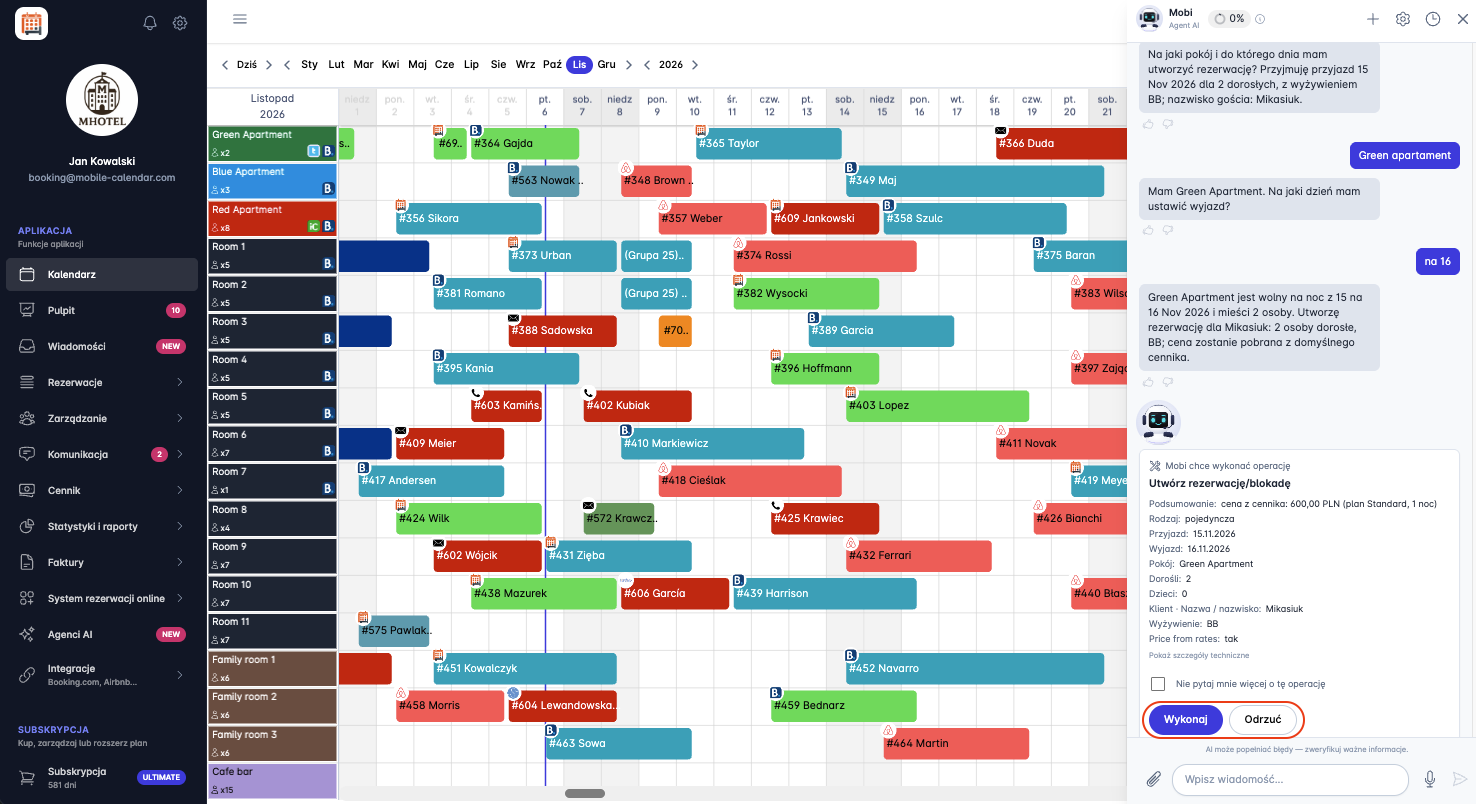
Room booking calendar with colorful stay blocks and an open chat panel The card "Mobi wants to perform an operation" will appear in the Mobi window, showing the operation name and a summary of the change.
Click Run to save the change.
Click Reject to cancel it.
On the card, you can click Show technical details to view the operation data.
Select Don't ask me about this operation again if you want Mobi to perform it later without asking.
After you make your choice, the card will show the outcome, and Mobi will confirm it in the conversation.

Mobi permissions
In the Mobi window, click the Gear icon in the top-right corner.
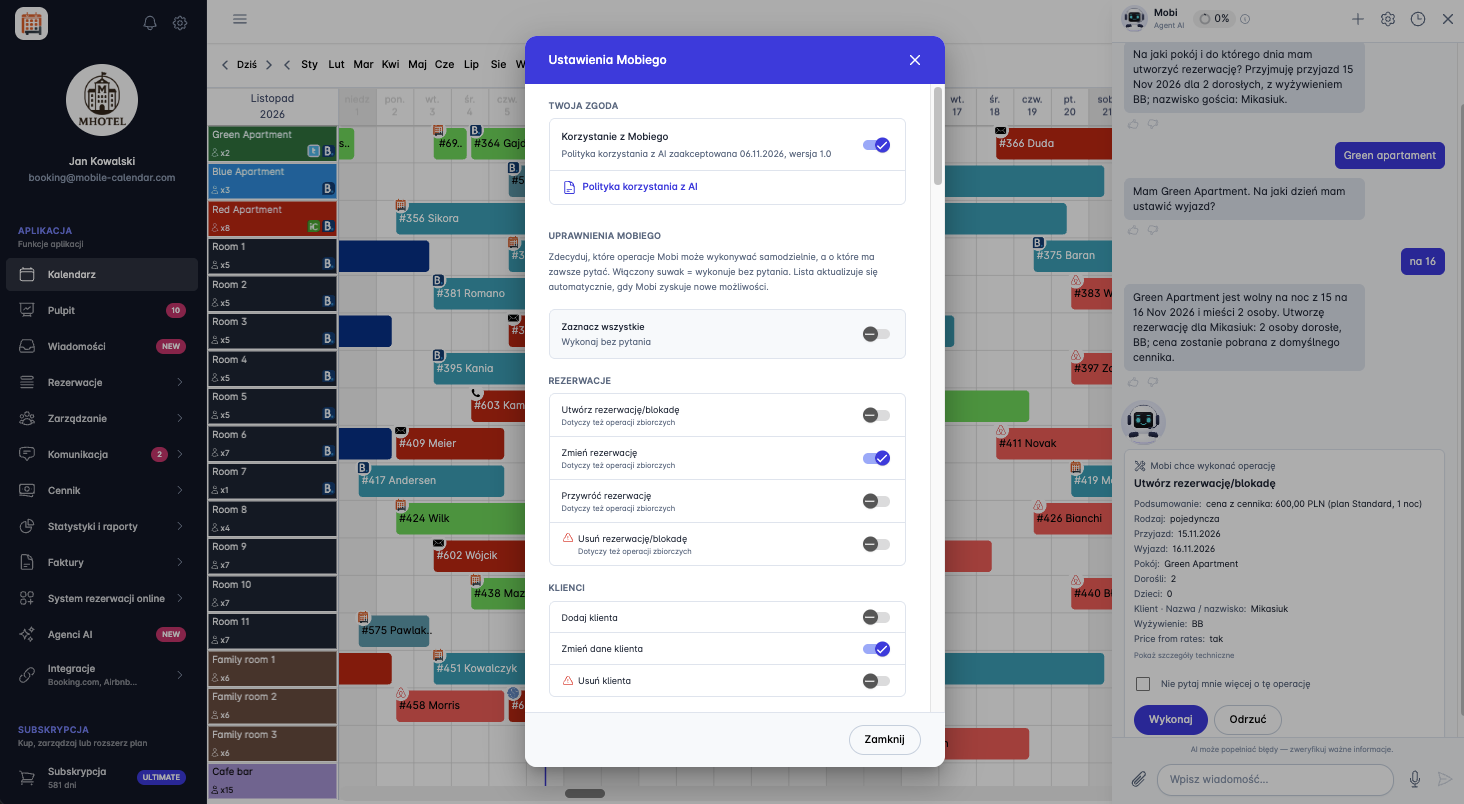
The "Mobi settings" window will appear.
In the "Mobi permissions" section, enable the toggle next to any operation you want Mobi to perform without asking. Operations are grouped, for example, into Reservations and Clients. When the toggle is enabled, Mobi will perform the operation without asking.
To enable all operations at once, enable the Select all toggle.
Click Close.

Mobile Application
Introduction
Mobi can also change data in the app, such as a reservation. Before saving a change, it shows a card with the operation for you to approve.
Instructions
In the bottom menu, go to the AI Agent tab.
Enter a command, for example, to change the number of guests in a reservation, and tap the Send icon.
A card titled "Mobi wants to perform an operation" will appear on the screen, describing the change.
Tap the Run button to save the change.
Tap the Reject button to cancel it.

On the card, you can tap Show technical details to see the operation data.
Select Don't ask me again about this operation if you want Mobi to carry it out without asking in the future.
After you make your choice, the card will show the outcome, and Mobi will confirm it in the conversation.

Mobi permissions
On Mobi's screen, tap the Gear icon in the top-right corner.
In the "Mobi permissions" section, turn on the toggle next to the operation you want Mobi to carry out without asking. Operations marked Always requires approval always need to be approved.

List of Mobi permissions
In the "Mobi permissions" section, you'll find the operations listed below. Operations marked with (*) also apply to bulk operations.
Reservations: Create a reservation/block (), Change a reservation (), Restore a reservation (), Delete a reservation/block ().
Clients: Add a client, Change client data, Delete a client.
Messages: Send a message in the OTA chat, Send an e-mail to a guest, Send an SMS to a guest.
Online check-in: Generate an online check-in link.
Rooms: Add a room, Change a room (*), Restore a room (with reservations), Delete a room.
Room types: Add a room type, Change a room type, Delete a room type.
Room photos: Add room photos, Add room type photos, Edit a room photo, Edit a room type photo, Delete a room photo, Delete a room type photo.
Price list: Change prices (*), Change the pricing model.
Rate plans: Add a rate plan, Edit a rate plan, Delete a rate plan.
Sales channels (OTA): Add a Booking.com rate plan, Change prices in OTA channels, Edit a Booking.com rate plan, Delete a Booking.com rate plan.
Additional services: Add an additional service, Edit an additional service, Delete an additional service.
Invoices: Create an invoice, Change an invoice, Send an invoice to KSeF, Delete an invoice.
Local tax: Change local tax, Delete local tax.
Reviews: Rate a guest, Synchronize reviews, Reply to a review, Save a draft reply to a review.
Automatic messages: Add an automatic message rule, Enable/disable an automatic message rule, Edit an automatic message rule, Delete an automatic message rule.
Message templates: Add a message template, Edit a message template, Delete a message template.
Property details: Edit property details.
House rules and privacy policy: Change the privacy policy, Change the property regulations.
Settings: Change property settings.
Employees: Add an employee, Edit an employee, Delete an employee.
Account: Change account data.
Other: Add a task, Add an attachment to a task, Add a comment to a task, Add a task category, Add a task tag, Change a task (), Change a task category, Change a checklist item, Change a task tag, Restore a task from the trash (), Take a task, Mark a task as done, Reopen a task, Send a task by e-mail, Move a task to the trash (*), Delete a task attachment, Delete a task category, Delete a task comment, Delete a task tag.
Was this article helpful?
Ask AI about this article
Choose an assistant. It opens with a ready-made question, reads this article and answers your questions.
Ask AI about this article
Choose an assistant. It opens with a ready-made question, reads this article and answers your questions.