

 Ask AI


Mobi: Getting Started
Choose an assistant. It opens with a ready-made question, reads this article and answers your questions.
Open in ChatGPT (opens in a new tab) Open in Claude (opens in a new tab) Open in Perplexity (opens in a new tab) Open in Gemini (opens in a new tab) Open in Grok (opens in a new tab) View as MarkdownChoose an assistant. It opens with a ready-made question, reads this article and answers your questions.
Open in ChatGPT (opens in a new tab) Open in Claude (opens in a new tab) Open in Perplexity (opens in a new tab) Open in Gemini (opens in a new tab) Open in Grok (opens in a new tab) View as MarkdownOn this page
On this page
Web Application
Introduction
Mobi is an AI assistant in mobile-calendar. It answers questions about your property’s data and carries out prompts, for example checking today’s arrivals. You can open the Mobi window from any tab in the system.
Instructions
Click the Mobi AI icon in the bottom-right corner of the screen.
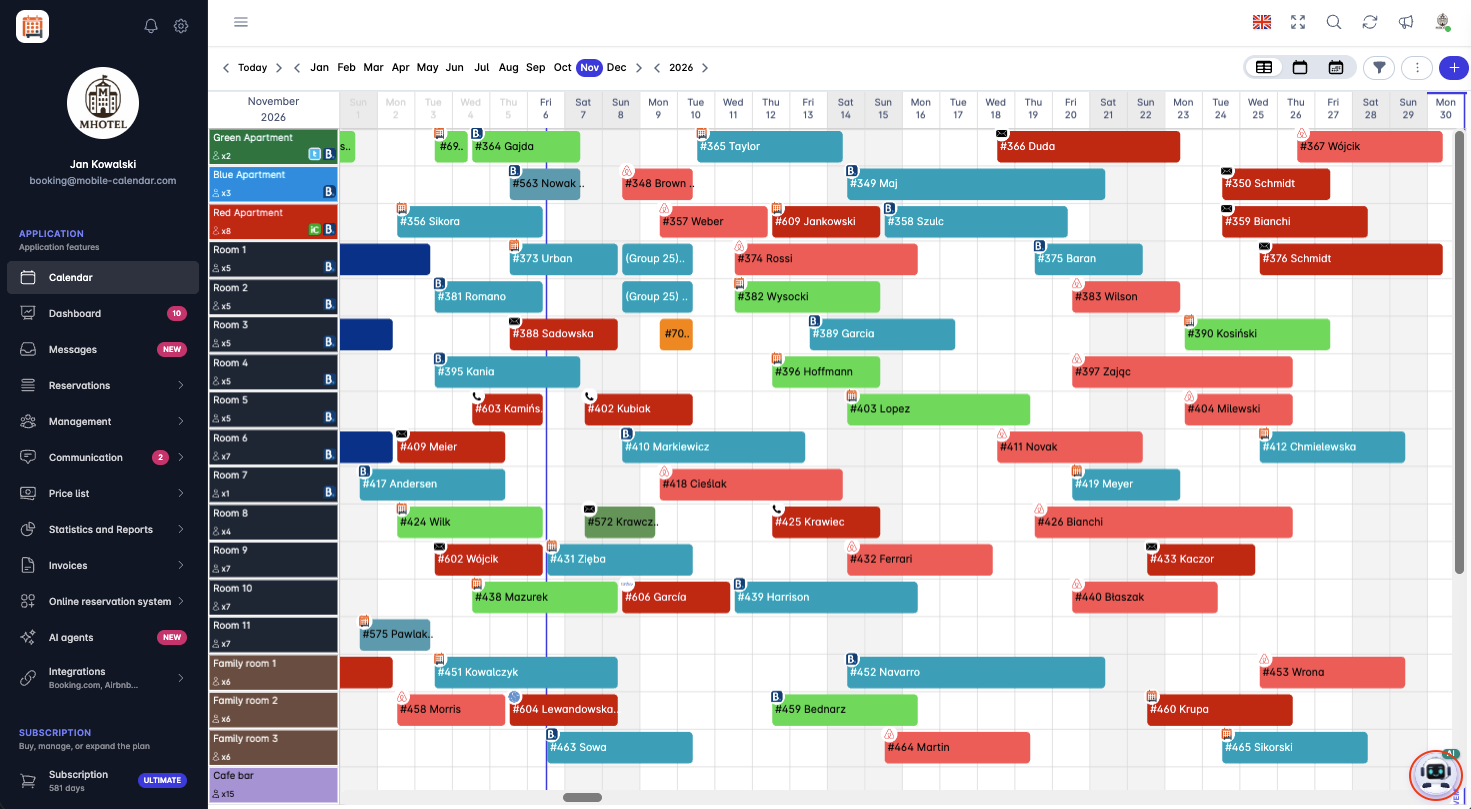
Mobi AI icon that opens the AI assistant in mobile-calendar The Mobi window will appear on the right side of the screen.


When you launch Mobi for the first time, read the AI Usage Policy and click I Accept and Enable Mobi.
On the “What shall we take care of today?” screen, click a tile with a ready-made prompt, such as Find an available room or Today’s arrivals, or enter your own prompt in the Enter a message... field.
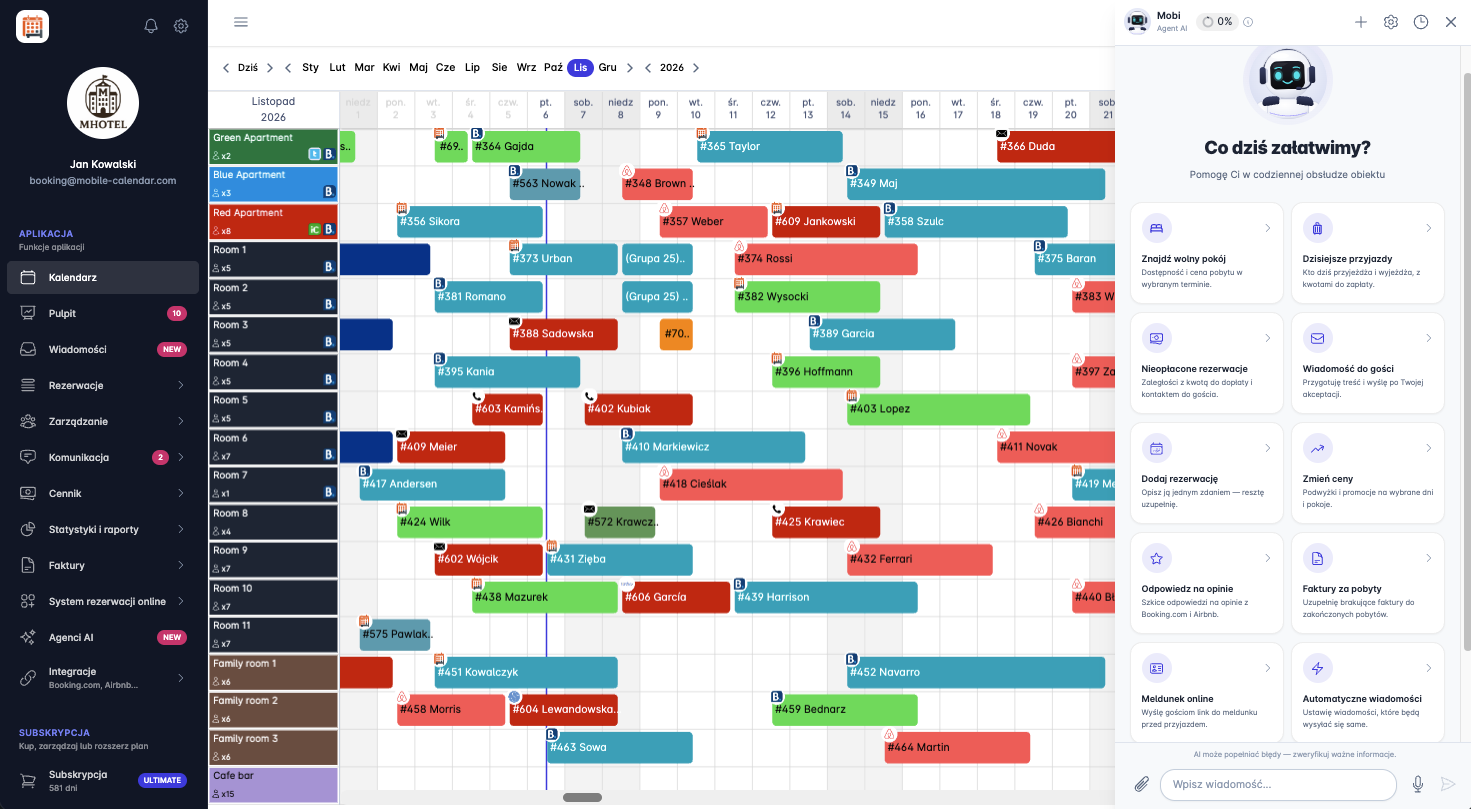
Mobi ready-made prompts and the field for entering a message to the AI assistant Click the Send icon next to the field.
Mobi will prepare a response. You can rate it using the Thumbs-up icon below the response.
To close the Mobi window, click the X icon in the top-right corner of the window.

Disabling Mobi
On the Mobi screen, click the Gear icon in the top-right corner.
In the “Your consent” section, turn off the Using Mobi toggle.
Your consent will be withdrawn. To use Mobi again, accept the policy once more.
Mobile Application
Introduction
Mobi is an AI assistant in the mobile-calendar app. It answers questions about your property data and carries out requests, for example, checking today's arrivals.
Instructions
In the bottom menu, go to the AI Agent tab.
The first time you use it, read the AI Usage Policy and tap I accept and enable Mobi.

- On the "What shall we take care of today?" screen, tap a tile with a suggested request or enter your own in the Enter a message... field. The tile only inserts the request into the field, so you can edit it before sending.

Tap the Send icon next to the field.
Mobi will prepare a response. To stop it, tap the red Stop response button.
You can rate the response using the Thumbs-up icon below it.

Disabling Mobi
On the Mobi screen, tap the Gear icon in the top-right corner.
In the "Your consent" section, turn off the Using Mobi switch.
Your consent will be withdrawn. To use Mobi again, accept the policy once more.
Was this article helpful?
Ask AI about this article
Choose an assistant. It opens with a ready-made question, reads this article and answers your questions.
Ask AI about this article
Choose an assistant. It opens with a ready-made question, reads this article and answers your questions.