

 Ask AI


Reservation list
Choose an assistant. It opens with a ready-made question, reads this article and answers your questions.
Open in ChatGPT (opens in a new tab) Open in Claude (opens in a new tab) Open in Perplexity (opens in a new tab) Open in Gemini (opens in a new tab) Open in Grok (opens in a new tab) View as MarkdownChoose an assistant. It opens with a ready-made question, reads this article and answers your questions.
Open in ChatGPT (opens in a new tab) Open in Claude (opens in a new tab) Open in Perplexity (opens in a new tab) Open in Gemini (opens in a new tab) Open in Grok (opens in a new tab) View as MarkdownOn this page
On this page
Web Application
Introduction
The reservation list in the Reservations tab contains all reservations added to the system. To quickly find a specific reservation, you can use the search function.
From the reservation list, users also have the ability to restore deleted reservations.
Instructions
Go to the Reservations tab -> Reservation List.
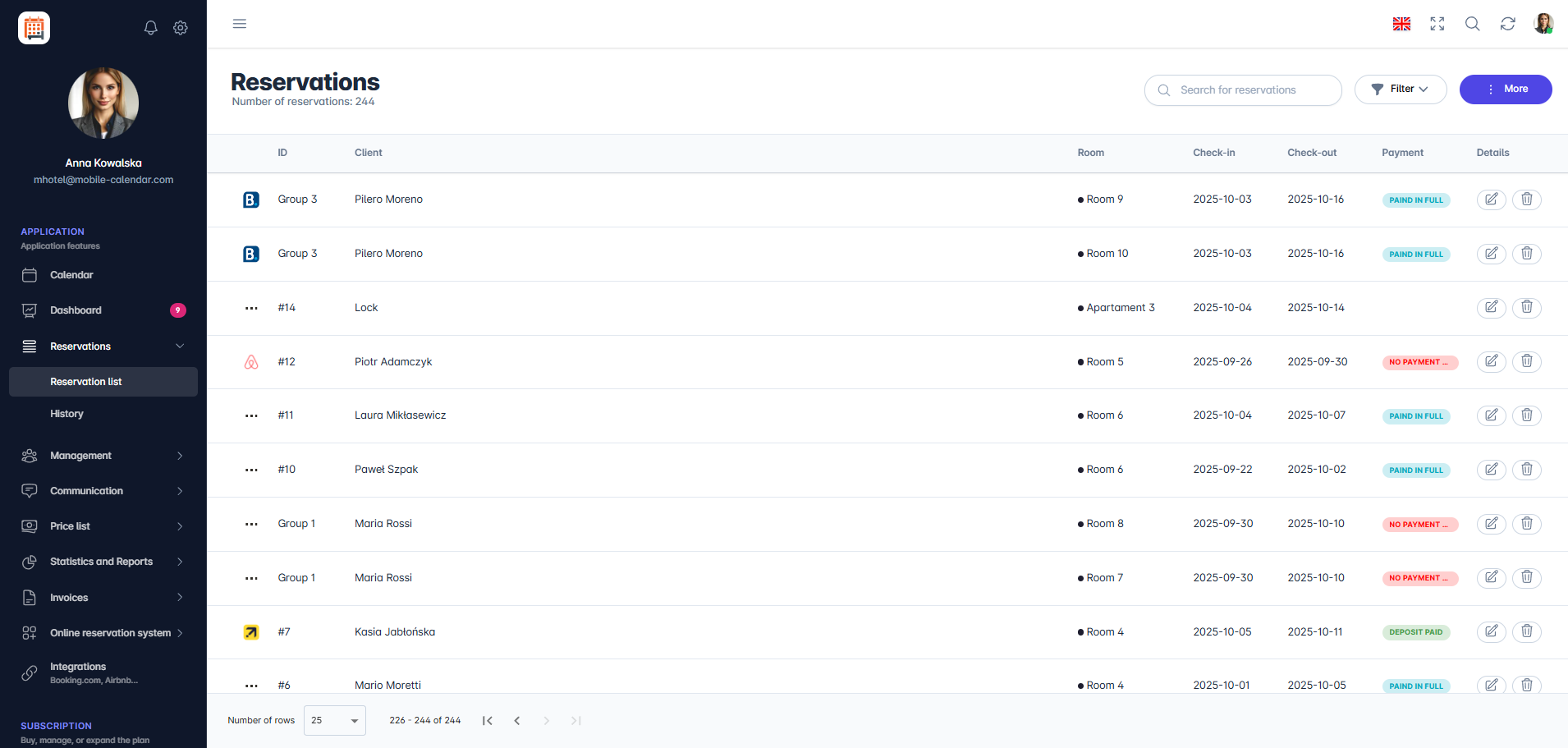
Reservation List The screen will display a list of all added reservations.
- If you want to search for a reservation, click in the Search field and enter at least one letter or number contained in the reservation ID, first name, or last name of the guest. The system will automatically display results matching the entered portion.
If you want to search for a specific type of reservation, click the Filter button in the upper right corner of the screen.
- A filtering form will appear on the screen, allowing you to customize the displayed list of reservations. Depending on the selected criteria, the list will dynamically change the displayed information, showing only the data that meets specified conditions.
- Available filters in the form: Rooms, From-To, Date Added, Date Edited, Payment Status, Source of Reservation, and Show Only Deleted.
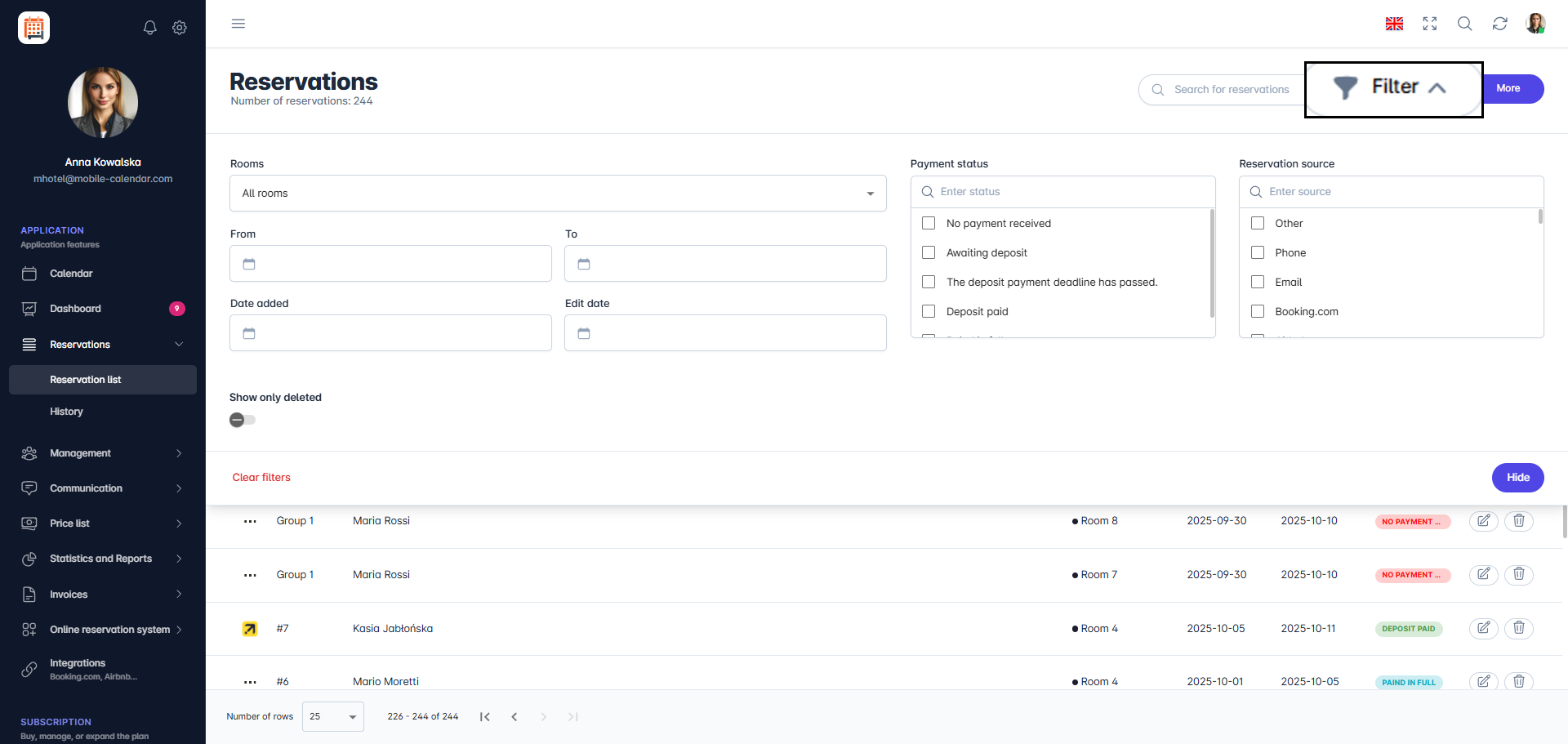
Filtering Reservations - Click on the Toggle "Show Only Deleted" to display only deleted reservations. If you want to restore a reservation:
- After clicking the toggle, select the reservation you want to restore from the list.
- Click the Notebook Icon (Details column).
- An editing form for the reservation will appear on the right side of the screen.
- At the bottom of the form, click the Restore button.
- The reservation will be added back to the calendar.


Mobile Application
Introduction
The reservation list brings together upcoming, all, and deleted reservations. You can search, filter, and sort them, as well as change their status without opening the form.
Instructions
- In the bottom menu, go to More -> Reservations -> Reservation list.

- At the top of the screen, select the Upcoming, All, or Deleted tab.

In the top bar, you’ll find:
The magnifying glass icon: search for reservations.
The Filter icon: room, source, stay dates, dates added and edited, and payment status. After selecting your filters, tap Apply.
The sort icon: ID, Arrival, or Departure.
Was this article helpful?
Ask AI about this article
Choose an assistant. It opens with a ready-made question, reads this article and answers your questions.
Ask AI about this article
Choose an assistant. It opens with a ready-made question, reads this article and answers your questions.