

 Ask AI


Editing Reservation
Choose an assistant. It opens with a ready-made question, reads this article and answers your questions.
Open in ChatGPT (opens in a new tab) Open in Claude (opens in a new tab) Open in Perplexity (opens in a new tab) Open in Gemini (opens in a new tab) Open in Grok (opens in a new tab) View as MarkdownChoose an assistant. It opens with a ready-made question, reads this article and answers your questions.
Open in ChatGPT (opens in a new tab) Open in Claude (opens in a new tab) Open in Perplexity (opens in a new tab) Open in Gemini (opens in a new tab) Open in Grok (opens in a new tab) View as MarkdownOn this page
On this page
Web Application
Introduction
Editing bookings allows for quick changes to be made to existing reservations. Users have the ability to update data, which is particularly useful in situations where clients' plans change.
Instructions
Editing a booking from the Calendar tab:
Go to the Calendar tab.
Click on the booking you wish to edit.
An editing form will appear on the right side of the screen. The form consists of 4 tabs: Booking, Client, Details, Finance.
Edit the selected fields.
In the bottom right corner of the form, click the Save changes button.
The booking will be updated.
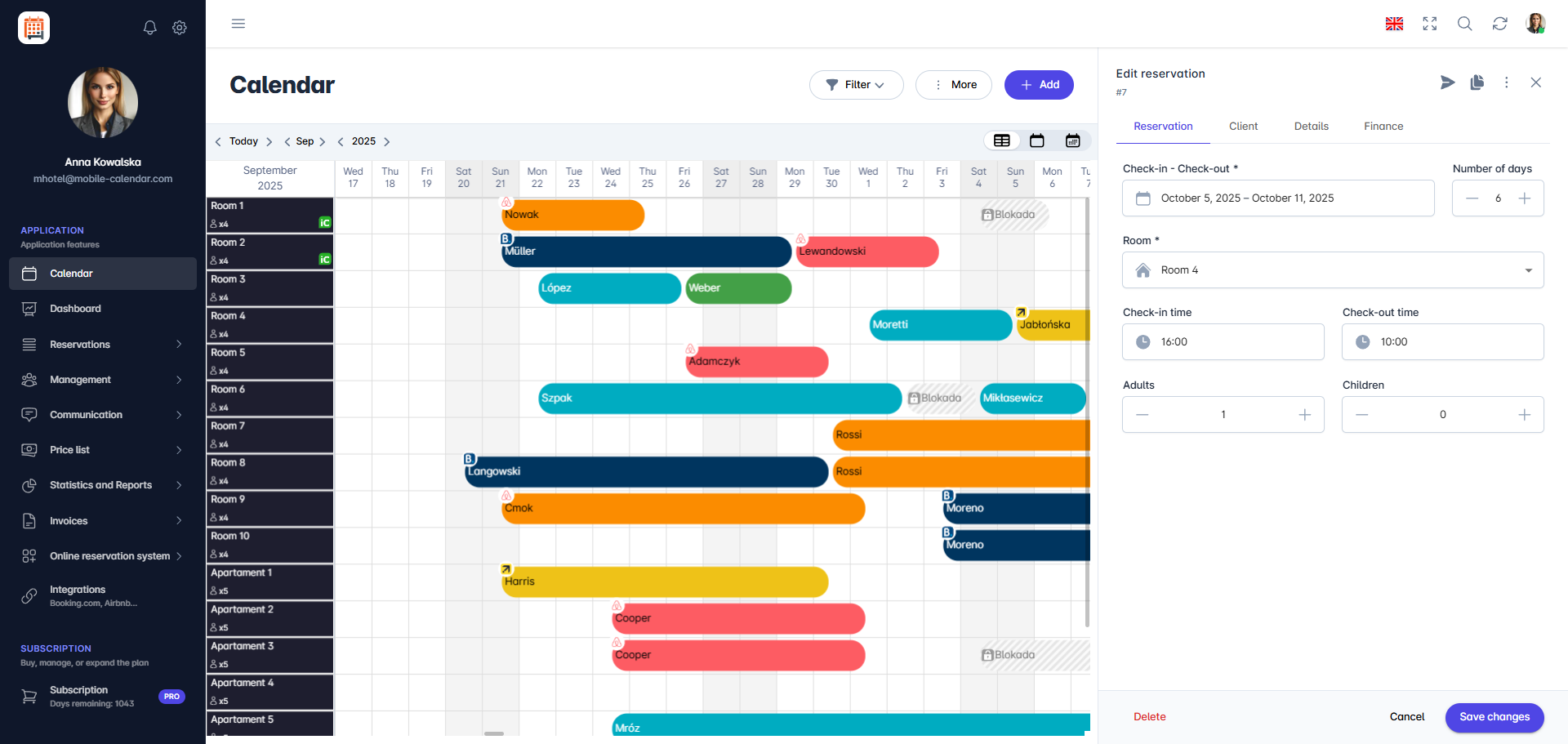
Editing a booking from the Calendar view

Editing a booking from the Reservations tab:
Go to the Reservations -> List of bookings tab.
Select the booking you want to edit from the list.
Click on the Notes icon (Details column).
An editing form will appear on the right side of the screen. The form consists of 4 tabs: Booking, Client, Details, Finance.
Edit the selected fields.
In the bottom right corner of the form, click the Save changes button.
The booking will be updated.
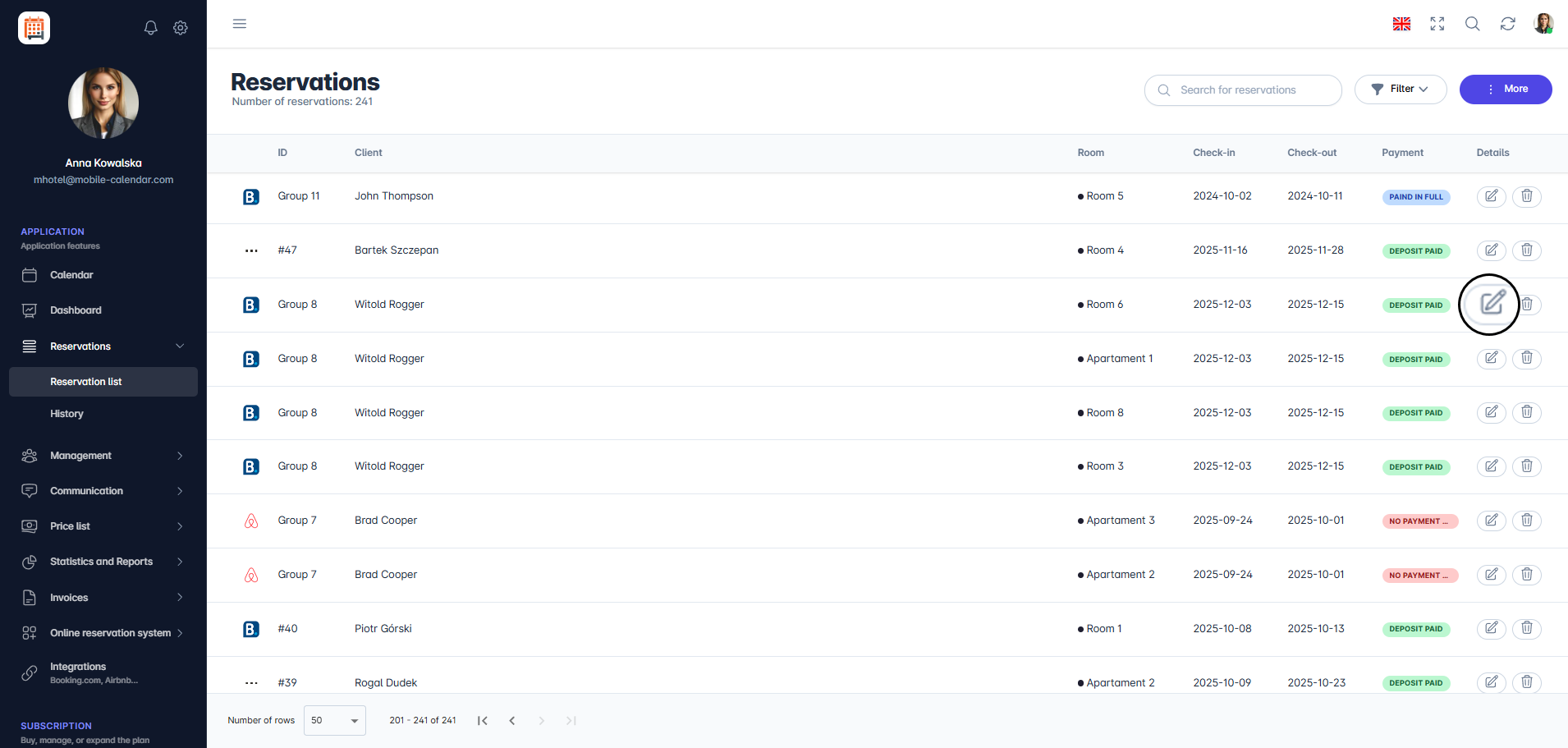
Editing a booking from the Reservations view

Recalculate prices
- If you edit fields related to the stay period or the number of people, a message "Changes detected" will appear at the bottom of the form – by using the price recalculation feature, you can avoid discrepancies and errors in billing.

- Click the Yes button.

A message summarizing the price recalculation will appear on the screen.
- Click the Apply changes button.
The prices will be updated.
Mobile Application
Introduction
You can edit a reservation in the same form you used to add it. Open the form from the calendar or the reservation list.
Instructions
Edit from the calendar
In the bottom menu, go to the Calendar tab.
Tap the reservation bar.
The "Edit reservation" form will appear on the screen with the reservation number.
Edit from the reservation list
In the bottom menu, go to More -> Reservations -> Reservation list.
On the reservation card, tap Edit.
Change reservation details
Go to the "Reservation", "Client", "Details" or "Finance" tab and change the fields you want.
Set the guest status in the "Details" tab, in the Check-in field.
Tap Save.

- The reservation will be updated. If you leave without saving, the app will ask whether you want to discard your changes.
Other actions
In the top-right corner of the form, tap the three-dot icon to open the menu.
Select Show on the calendar, History or another option from the list.

Was this article helpful?
Ask AI about this article
Choose an assistant. It opens with a ready-made question, reads this article and answers your questions.
Ask AI about this article
Choose an assistant. It opens with a ready-made question, reads this article and answers your questions.