

 Ask AI


How to set promotions on Booking.com?
Choose an assistant. It opens with a ready-made question, reads this article and answers your questions.
Open in ChatGPT (opens in a new tab) Open in Claude (opens in a new tab) Open in Perplexity (opens in a new tab) Open in Gemini (opens in a new tab) Open in Grok (opens in a new tab) View as MarkdownChoose an assistant. It opens with a ready-made question, reads this article and answers your questions.
Open in ChatGPT (opens in a new tab) Open in Claude (opens in a new tab) Open in Perplexity (opens in a new tab) Open in Gemini (opens in a new tab) Open in Grok (opens in a new tab) View as MarkdownOn this page
Web Application
From the left menu, click on the Pricing tab -> Set prices.
Select the price list by clicking on Booking.
In the upper right corner, click the More button -> Promotions.

- The screen will display a list of all added, active promotions.
- Click on the selected promotion to view detailed data.

- Click on the "Show inactive" toggle, and only inactive promotions will be displayed on the screen. If you want to restore a promotion:
- After clicking the toggle, select the promotion you want to restore from the list.
- Click the Edit button.
- A form titled "Creating promotions on Booking.com" will appear on the screen.
- In the Date of stay section, remove the dates in the Start and End fields, and then add a new date range.
- Click Save changes.
- The promotion will be restored - you will find it on the list of active promotions.

- To add a new promotion, click the Add promotion button in the upper right corner.

- A form titled "Creating promotions on Booking.com" will appear on the screen.
- In the Hotel ID field, enter your hotel ID.
- In the Offer name field, enter the name.
- Click on Type of offer and Select the appropriate type of offer from the drop-down list: Basic, Early reservation or Last minute.
- Click on Who will be able to see the offer? and Select from the drop-down list who will be able to take advantage of the promotion.
- Check the box next to the selected rate plans that should be included in the promotion.
- Check the box next to the rooms that should be included in the promotion.
- Click on Discount and Select the discount from the drop-down list.
- Click on What is the required length of stay? and choose one of two options from the drop-down list: Match to selected rate plans or Select the minimum number of nights. If you choose Select the minimum number of nights, an additional field will appear: Number of nights.
In the Date of stay section, select the dates during which this offer will be valid. Fill in the Start and End fields.
If you want to exclude certain days from the selected date range, click the Toggle "Exclude days from the discount". Then exclude days by Clicking on the selected days on the calendar.
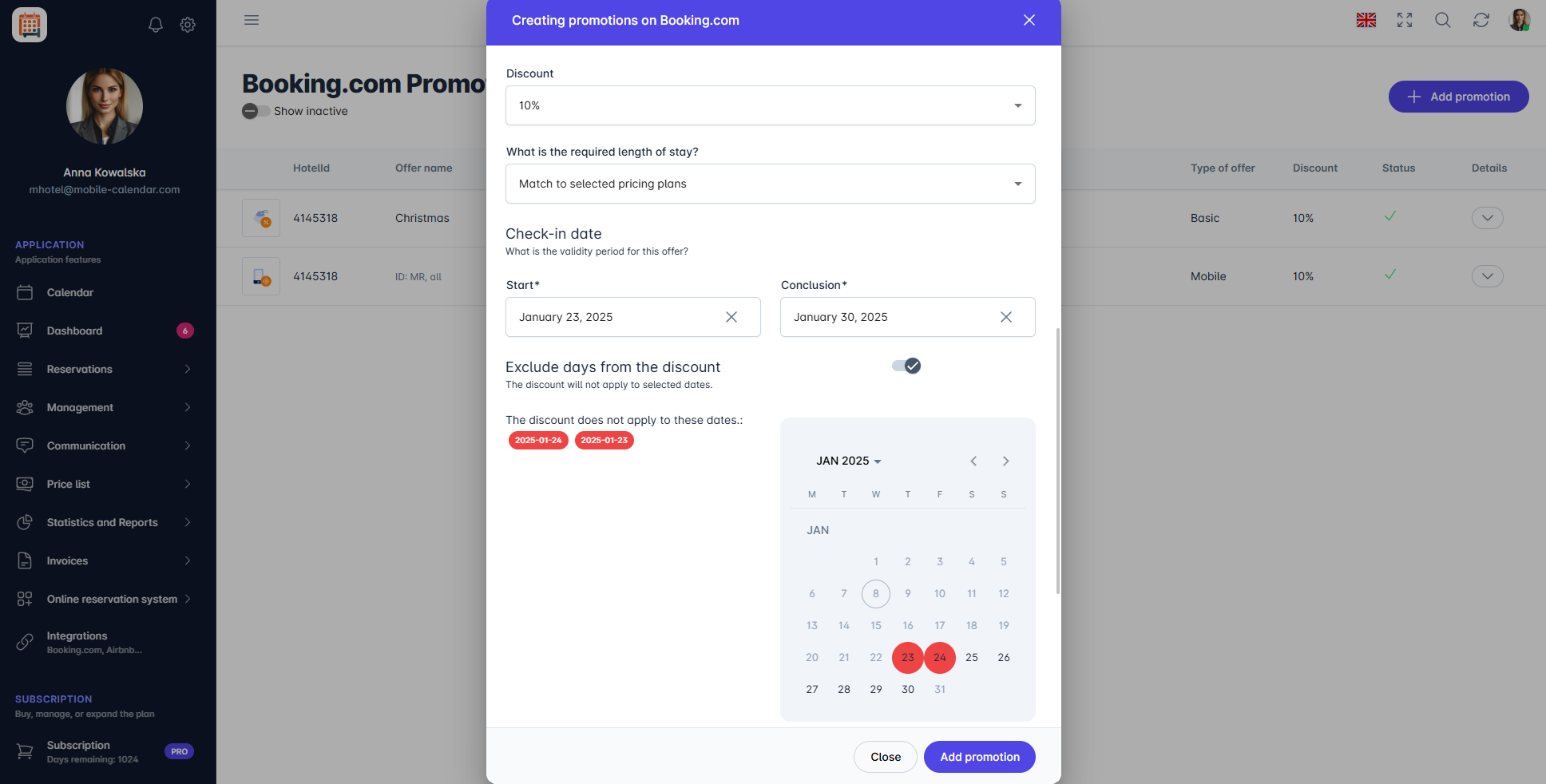
Booking.com Promotion Settings
Click on the Days of the week field and from the drop-down list Select the days on which the promotional offer should apply.
You can also limit the activity hours. To do this, click the Toggle "Limit activity hours" and fill in the From and To fields.
Additional fields in the form, depending on the type of offer:
- Basic (section: Open period for reservations):
- Click on the Type field and Select one of two options from the drop-down list: Any or Date range. If you choose Date range, fill in the From and To fields.
- Early reservation (section: Open period for reservations):
- In the Number of days field, enter the selected number of days.
- Last minute (section: Advance reservation):
- Click on the Advance reservation field and Select one of two options from the drop-down list: Days or Hours, then enter the selected number of days or hours.
- Basic (section: Open period for reservations):
Click the Add promotion button.

Mobile Application
Introduction
You can set up Booking.com promotions in the Booking.com price list. You need to disable synchronization with Booking.com while making changes to promotions.
Instructions
In the bottom menu, go to the More tab.
Go to Price list -> Set prices and tap Booking.com.
In the top-right corner, tap the three-dot icon and select Booking.com Promotions.

Tap the Disable synchronization switch.
In the "Confirmation" window, the Close property checkbox is selected by default and closes all rooms on Booking.com. If the property should accept reservations during this time, deselect this checkbox. Then tap Yes, turn off.

Adding a promotion
Tap the + button in the bottom-right corner.
The "Create Booking.com promotion" form will appear on the screen.
If you have several properties, select a property in the Hotel ID field. Select rate plans only from that property.
Enter a name in the Offer name field, then select the promotion type from the Type of offer list.
Select the Rate plans and Rooms covered by the promotion, and enter the Discount.
In the "Date of stay" section, enter the From and To dates.
Tap Add promotion.
The promotion will appear in the list. Enable synchronization using the same switch. If the property was closed, the switch will take effect after 2 minutes.
Changing or deleting a promotion
Tap a promotion in the list. Its details will appear on the screen.
Tap Edit to change it, or Delete to remove it. Confirm the deletion by tapping Yes, delete.
To see inactive promotions, turn on the Show inactive switch. To restore a promotion, tap Reactivate, check the details in the form, and tap Save changes.
You can't change or delete some promotions in the app. When you tap one of these promotions, a message will appear saying that this is only possible in the Booking.com Extranet.
When you have finished making changes, enable synchronization using the same switch. If the property was closed, the switch will take effect after 2 minutes.
Was this article helpful?
Ask AI about this article
Choose an assistant. It opens with a ready-made question, reads this article and answers your questions.
Ask AI about this article
Choose an assistant. It opens with a ready-made question, reads this article and answers your questions.