

 Ask AI


Configuring the Slowhop connection
Choose an assistant. It opens with a ready-made question, reads this article and answers your questions.
Open in ChatGPT (opens in a new tab) Open in Claude (opens in a new tab) Open in Perplexity (opens in a new tab) Open in Gemini (opens in a new tab) Open in Grok (opens in a new tab) View as MarkdownChoose an assistant. It opens with a ready-made question, reads this article and answers your questions.
Open in ChatGPT (opens in a new tab) Open in Claude (opens in a new tab) Open in Perplexity (opens in a new tab) Open in Gemini (opens in a new tab) Open in Grok (opens in a new tab) View as MarkdownOn this page
On this page
Web Application
Introduction
The Slowhop integration automatically imports reservations from Slowhop into your mobile-calendar calendar and sends your rooms’ current availability, prices, and restrictions to Slowhop. This means that a date booked through another channel will also be blocked on Slowhop, reducing the risk of double bookings.
Instructions
From the left-hand menu, go to Integrations → Channel Manager.
In the Direct integration section, click Configuration on the Slowhop card.
You’ll be taken to the 6-step Slowhop connection wizard.
Step 1: Introduction
Review the scope of the integration. It sends availability, prices, and restrictions to Slowhop and imports reservations from Slowhop.
Click Next.
Step 2: Connect property
- In your Slowhop panel, go to Settings -> Integrations.

Click Connect to Channel Manager.
In the “Integration with channel manager” window, click Generate integration key.

Copy the generated key from the Integration key field using the copy icon.
Return to the Slowhop integration settings in mobile-calendar and paste the copied UID key into the UIK code field.

Click Connect property to save the key and connect the property.
Return to Slowhop and refresh the page in your browser.
Go to Settings -> Integrations again and click Enable next to Pricing.

Return to the wizard in mobile-calendar.
Once the property is connected successfully, it will appear in the Connected property list, along with its name, the Slowhop property ID field, and the number of Mapped rooms.
If you have several properties on Slowhop, enter another UIK code and click Connect another property.
To check the current connection status, click Refresh status.
How do you disconnect a property?
Next to the selected property in the list, click the Disconnect icon.
In the “Disconnect the property?” window, click Disconnect.
The room mappings for this property will be removed, and its availability will be released in Slowhop. If this was the last connected property, synchronization will be disabled. Reservations that have already been imported will remain in the calendar.
Step 3: Room mapping
Assign the corresponding Slowhop properties to your rooms. Availability is sent separately for each property.
For each room, click the dropdown on the right and select the matching offer from Slowhop.

- Click Save. Your changes will also be saved when you click Next.
Step 4: Rate plans
Go to the Rate plans step.
Check the list of rate plans from Slowhop. Add and edit plans in the Slowhop panel.
After making changes in Slowhop, click Refresh plans to refresh the list in mobile-calendar.

Click Go to rate sheet to set prices for Slowhop.
In the Slowhop rate sheet, select the dates for the relevant room and rate plan.
Enter the amount in the Price field and click Save.

- Return to the wizard and click Next.
Step 5: Reservation import
- Import existing reservations from Slowhop into the calendar to avoid double bookings.

Click Import reservations.
When the import is complete, you’ll see the number of imported, updated, and skipped reservations.
The import retrieves future confirmed reservations for mapped rooms. You can run the import again, for example, after completing the room mapping.
Step 6: Synchronization
Before enabling synchronization, make sure that:
- the rooms are mapped correctly,
- existing reservations from Slowhop have been imported.
Click the Automatic synchronization toggle.
Once enabled, mobile-calendar sends availability, prices, and restrictions to Slowhop.

How do you disable synchronization?
Click the Automatic synchronization toggle.
Click Yes, turn off.
Mobile Application
Introduction
The Slowhop integration automatically imports reservations from Slowhop into the mobile-calendar calendar and sends your rooms’ current availability, prices, and restrictions to Slowhop. This means that dates reserved through another channel will also be blocked on Slowhop, reducing the risk of double bookings.
Instructions
In the bottom menu, go to the More tab.
Go to the Channel manager section.
On the Slowhop card, tap the Configuration button.
The Slowhop connection setup wizard will appear on the screen.
Step 1: Introduction
Review the scope of the integration. It sends availability, prices, and restrictions to Slowhop and imports reservations from Slowhop.
Tap the Next button.
Step 2: Connect property
- In the Slowhop panel, go to Settings -> Integrations.
Tap Connect to Channel Manager.
In the “Channel manager integration” window, tap Generate integration key.
Copy the generated key from the Integration key field using the copy icon.
Return to the mobile-calendar app and paste the copied key into the UIK code field.
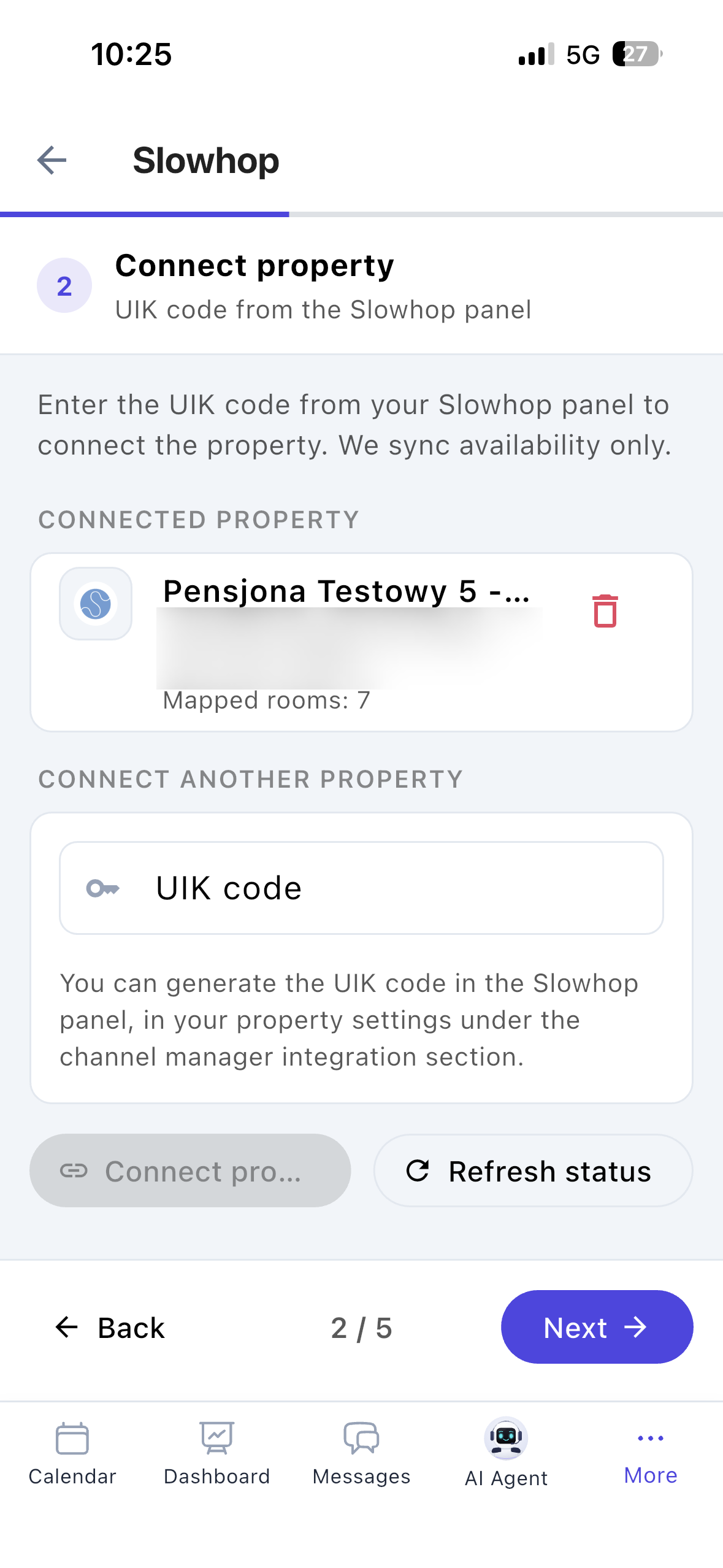
Tap the Connect property button to save the key and connect the property.
Return to Slowhop and refresh the page in your browser.
Go to Settings -> Integrations again and tap Enable next to Pricing.

Return to the setup wizard in the mobile-calendar app.
Once the property is connected successfully, it will appear in the Connected property section with its name, Slowhop property ID, and the number of Mapped rooms.
If you have several properties on Slowhop, enter another UIK code in the Connect another property section and tap the Connect property button.
To check the current connection status, tap the Refresh status button.
Tap the Next button.
How do you disconnect a property?
For the selected property in the Connected property section, tap the Trash icon.
Confirm that you want to disconnect the property.
The room mappings for this property will be deleted, and its availability will be released on Slowhop. If it was the last connected property, synchronization will be turned off. Reservations already imported will remain in the calendar.
Step 3: Room mapping
Assign each of your rooms to the corresponding property on Slowhop. Availability is sent separately for each property.
For each room, tap the selection field on the right and select the corresponding listing from Slowhop.

- Tap the Next button to save the mapping.
Step 4: Reservation import
- Import existing reservations from Slowhop into the calendar to avoid double bookings.

Tap the Import reservations button.
When the import is complete, you’ll see the number of imported, updated, and skipped reservations.
The import fetches future confirmed reservations for mapped rooms. You can run the import again, for example, after completing the mapping.
Tap the Next button.
Step 5: Synchronization
Before enabling synchronization, make sure that:
- the rooms are mapped correctly,
- existing reservations from Slowhop have been imported.
Tap the Automatic synchronization toggle.
Once enabled, the Synchronization enabled status will appear, and mobile-calendar will send availability, prices, and restrictions to Slowhop.

- Tap the Finish button.
How do you turn off synchronization?
Tap the Automatic synchronization toggle.
Tap Yes, turn off.
Was this article helpful?
Ask AI about this article
Choose an assistant. It opens with a ready-made question, reads this article and answers your questions.
Ask AI about this article
Choose an assistant. It opens with a ready-made question, reads this article and answers your questions.