

 Ask AI


Meal Report
Choose an assistant. It opens with a ready-made question, reads this article and answers your questions.
Open in ChatGPT (opens in a new tab) Open in Claude (opens in a new tab) Open in Perplexity (opens in a new tab) Open in Gemini (opens in a new tab) Open in Grok (opens in a new tab) View as MarkdownChoose an assistant. It opens with a ready-made question, reads this article and answers your questions.
Open in ChatGPT (opens in a new tab) Open in Claude (opens in a new tab) Open in Perplexity (opens in a new tab) Open in Gemini (opens in a new tab) Open in Grok (opens in a new tab) View as MarkdownOn this page
On this page
Web Application
Introduction
The system offers the option to generate meal reports, allowing you to monitor the number of meals purchased by guests in various variants. This is an important tool that makes it easier to control current demand and plan catering services, as well as adjust the offer depending on customer preferences. Thanks to the ability to filter and modify the date range, reports can be precisely tailored to the user's needs.
Instructions
Go to Statistics and reports -> Meals.
After entering the tab, a report for two days (today and tomorrow) is generated by default.
- The date range can be changed by clicking the Date range button in the upper-right corner.
The meal report contains information about the number of meals purchased by adults and children in different meal plan options.
To view detailed data, click the Details button in the upper-right corner.
- After clicking, a detailed view will appear broken down by room, guest surname, number of adults and children, number of meals, and the selected meal plan option.
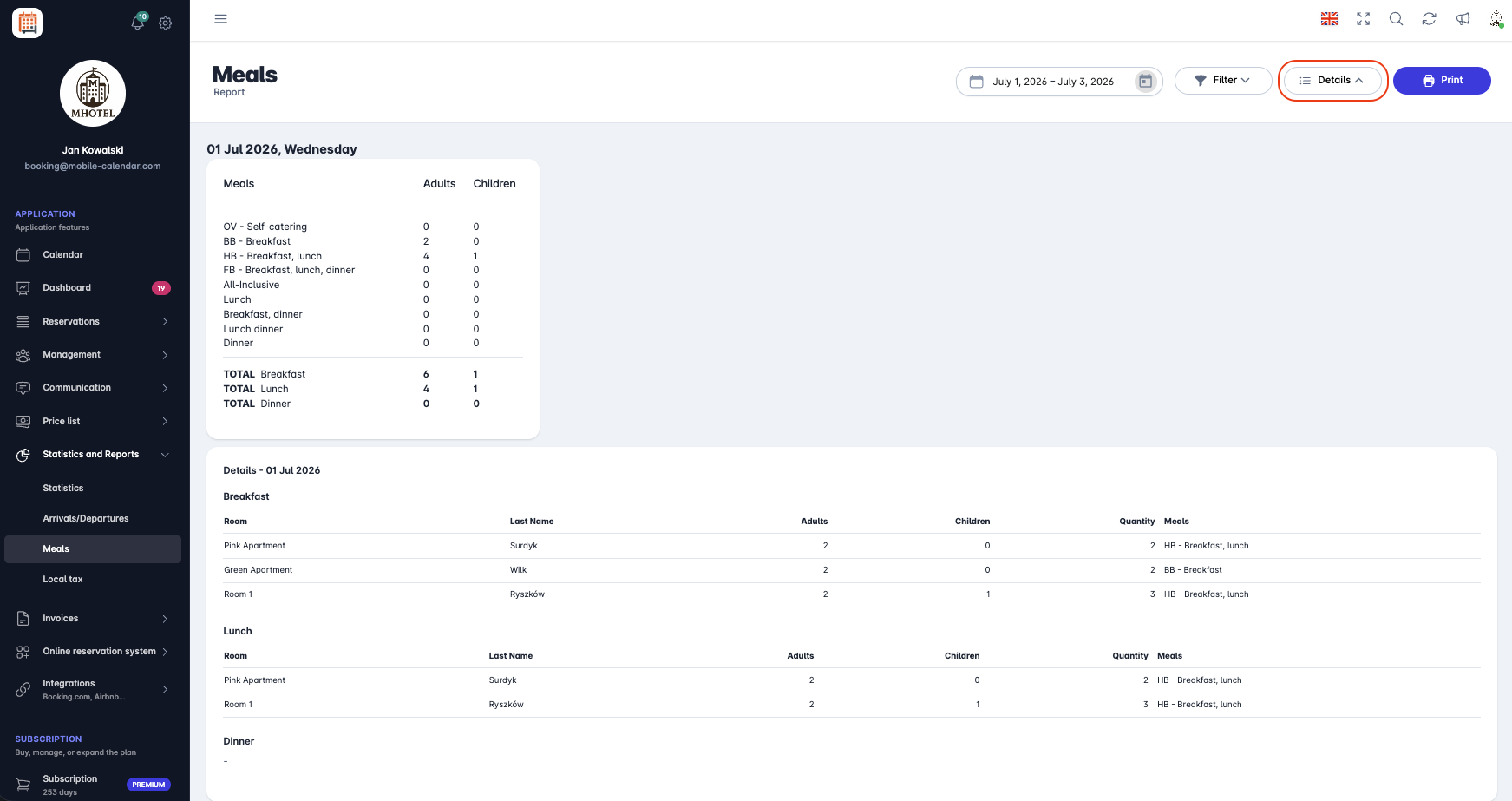
Meal report Depending on the selected Date range, the system generates separate reports for each day, and at the end presents a summary meal report.

Printing reports
To generate a report according to specific guidelines, click the Filter button in the upper-right corner of the screen.
- A filtering form will appear on the screen, allowing you to adjust the generated report. Depending on the selected criteria, the list will dynamically change the displayed information, showing only the data that meets the specified conditions.
- The available filter in the form applies to Meals; the user can select which meal plan should be displayed in the report, e.g., only BB - breakfast and HB - Breakfast, lunch.
- To print the report, click the Print button in the upper-right corner.
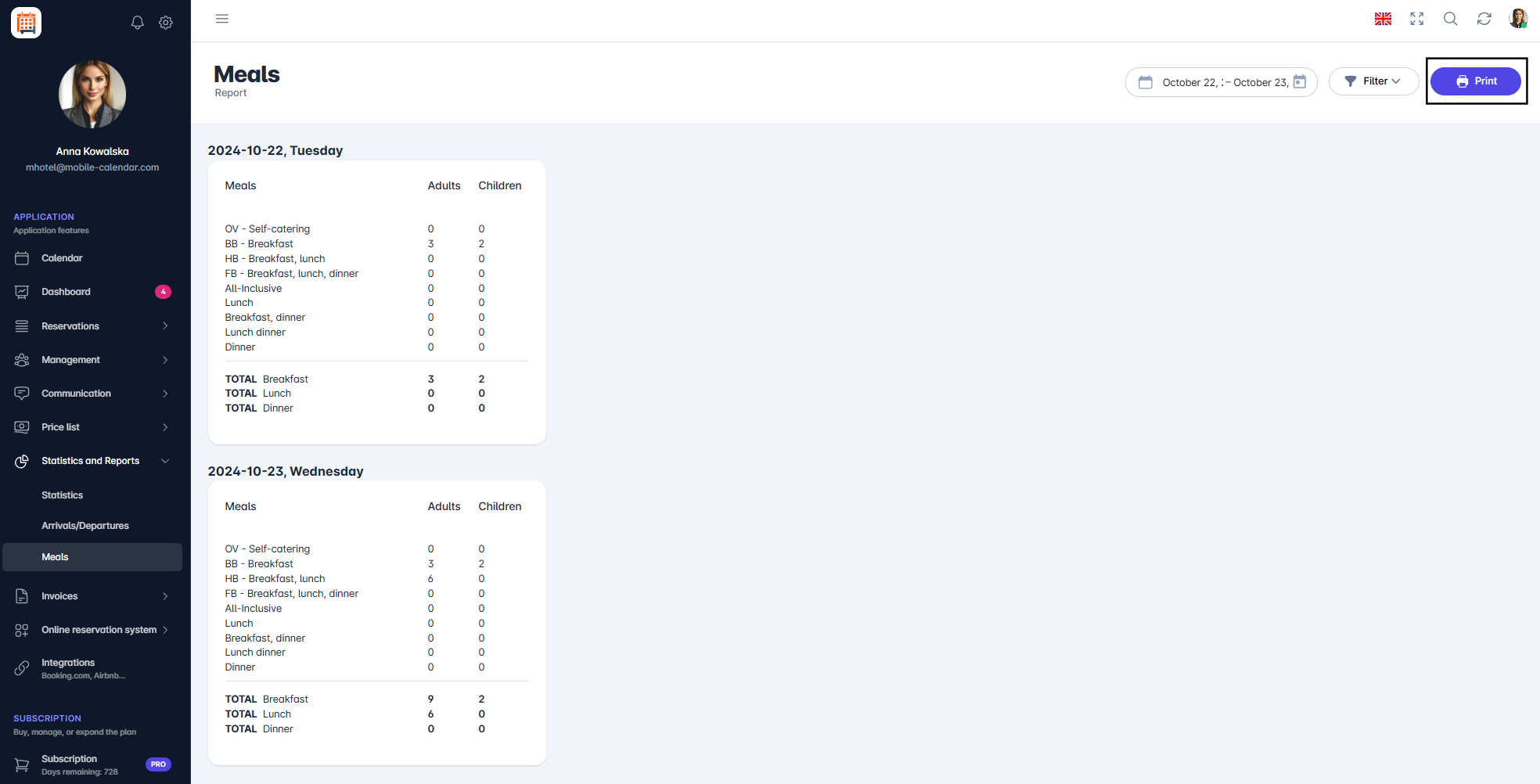
Drukowanie raportu A PDF file will be downloaded.

View of the downloaded PDF file:

Mobile Application
Introduction
The Meals Report shows how many meals need to be prepared on selected days, separately for adults and children. The data comes from bookings that include meals.
Instructions
In the bottom menu, go to the More tab.
Go to Statistics and Reports -> Meals.

The screen will show a report for today and tomorrow.
To change the date range, tap From or To and select a day in the calendar.
On each day's card, you'll see meal types and totals for each meal, followed by the Total card.

Guest list for meals
Tap the Filter icon in the top-right corner.
Enable the Details switch and tap Apply.

- The day card will show a list of rooms and guests for each meal.

Export
Tap the Download icon in the top-right corner.
A list called "Export" will appear. Choose PDF, Print, Excel (XLSX), CSV, or OpenDocument (ODS).
The file will appear in the system sharing window, where you can save or send it.
Was this article helpful?
Ask AI about this article
Choose an assistant. It opens with a ready-made question, reads this article and answers your questions.
Ask AI about this article
Choose an assistant. It opens with a ready-made question, reads this article and answers your questions.