

 Ask AI


Generating Statistics
Choose an assistant. It opens with a ready-made question, reads this article and answers your questions.
Open in ChatGPT (opens in a new tab) Open in Claude (opens in a new tab) Open in Perplexity (opens in a new tab) Open in Gemini (opens in a new tab) Open in Grok (opens in a new tab) View as MarkdownChoose an assistant. It opens with a ready-made question, reads this article and answers your questions.
Open in ChatGPT (opens in a new tab) Open in Claude (opens in a new tab) Open in Perplexity (opens in a new tab) Open in Gemini (opens in a new tab) Open in Grok (opens in a new tab) View as MarkdownOn this page
On this page
Web Application
Introduction
In the Statistics panel, users will find detailed information regarding payments, reservations, income, and occupancy.
Statistics include received and expected payments, revenue breakdown by categories, and guest payment preferences.
Additionally, the occupancy section displays room occupancy, while statistics regarding the number of reservations, guests, and their nationalities help to better understand the guest profile.
Instructions
Navigate to the Statistics and Reports tab -> Statistics.
In the statistics panel, data for the last month is displayed by default: from today to the same day of the previous month, covering all units in the property. At any time, you can adjust the data range displayed and the manner in which it is presented.
Changing the time range:
- Click the Date Range button in the top right corner.
- Select the chosen range in the calendar (minimum of two days).
Changing the room view:
- Click the Rooms button in the top right corner.
- Choose the view option All Rooms or select a specific room from the list.
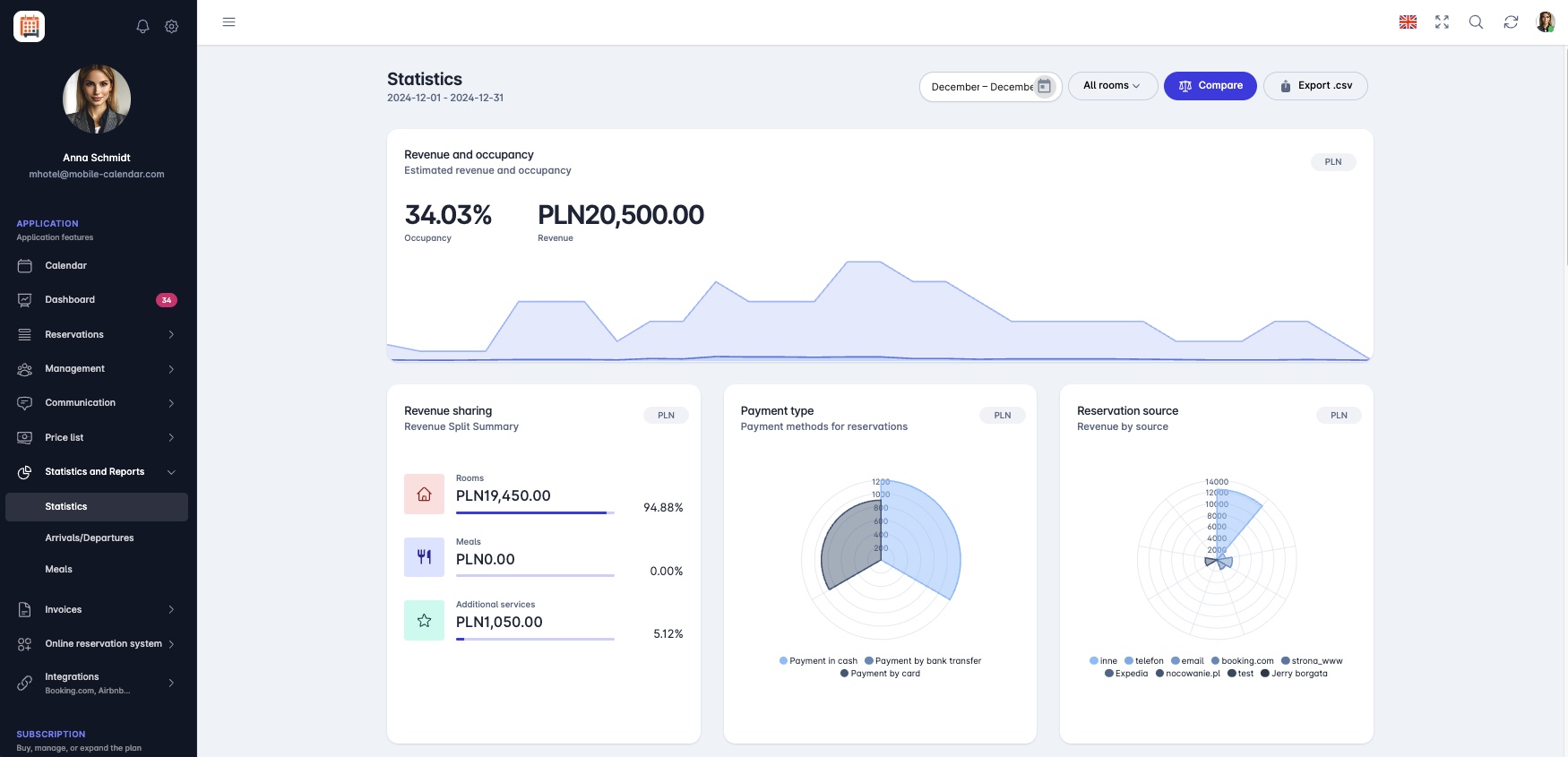
Statistics

Explanation of Statistics
- Revenue and Occupancy: This section presents forecasts regarding future income (after settling all dues from reservations during the specified period) as well as the current occupancy of the property expressed as a percentage.
Revenue Breakdown: This section divides revenue into various categories such as room income, dining, or additional services. This allows for easy visibility of which aspects of the property's operation generate the most income.
Payment Types: This section presents information about the payment methods used by guests, e.g., cash payments, credit card payments, or bank transfers. This analysis allows you to see which payment methods are preferred by guests and adjust payment processes accordingly.
Reservation Source: This statistic refers to where reservations are coming from, meaning which sales channels are most frequently utilized. Analyzing this data allows you to assess which sources generate the most reservations and which sales channels should be strengthened or optimized to increase reservations and revenue.
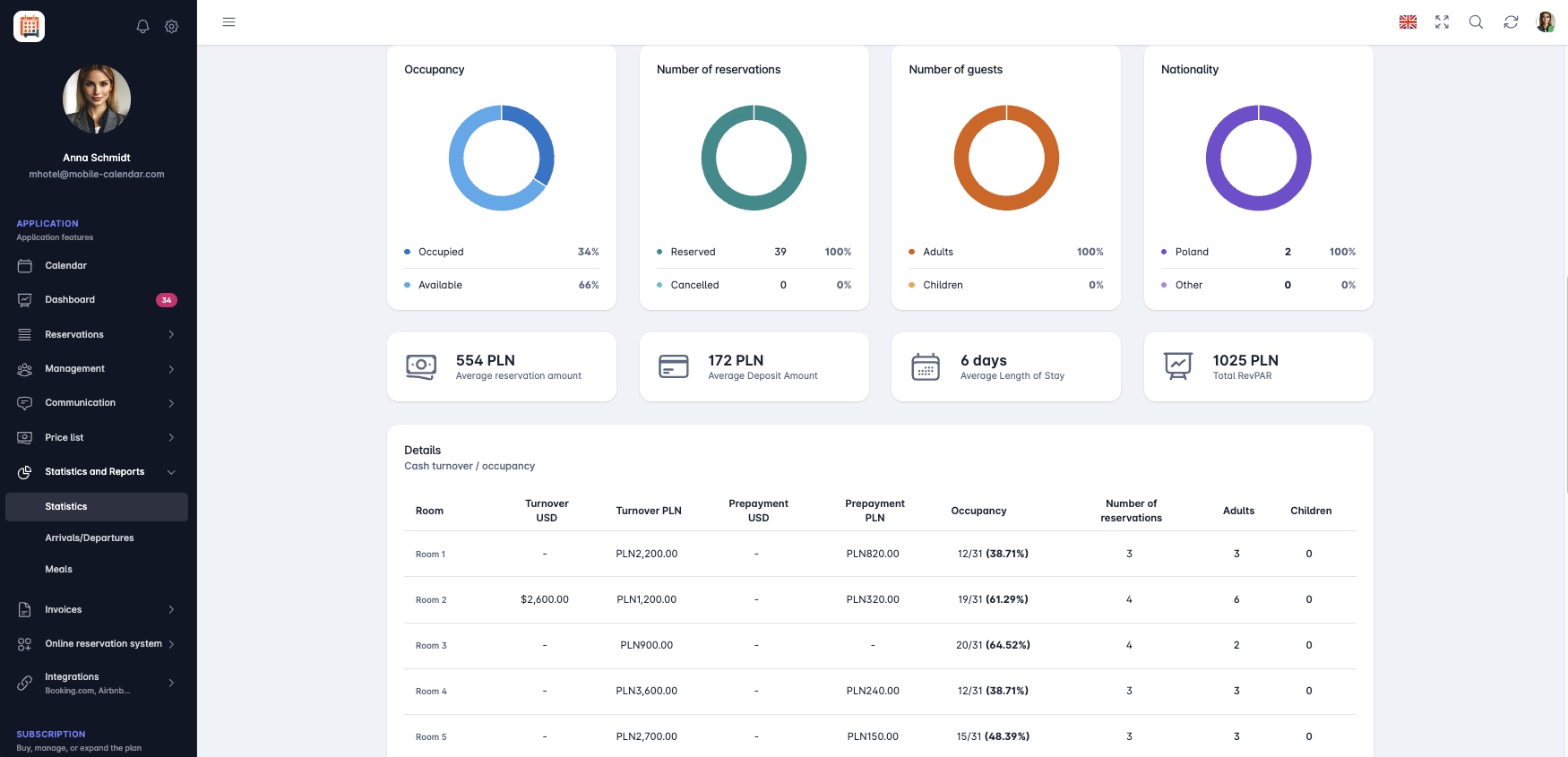
Statistics Occupancy: Occupancy is an indicator showing the degree of room occupancy in the property, divided into:
- Occupied: The percentage of available rooms that are currently rented by guests.
- Free: The percentage of available rooms that are unoccupied and available.
Number of Reservations: This statistic presents the total number of reservations made during a specified period, divided into:
- Booked: The number of reservations that have been successfully completed.
- Canceled: The number of reservations that have been canceled by guests.
Number of Guests: This statistic informs about the number of guests, divided into:
- Adults: The percentage of adult guests in relation to the total number of individuals.
- Children: The percentage of child guests in relation to the total number of individuals.
Nationality: This section provides information about the guests' origins.
Average Amounts: This statistic includes various average values, such as: Average Booking Amount, Average Deposit Amount, Average Length of Stay, Total RevPAR.

Details: This section contains detailed information regarding each room in the property. These statistics are presented in a table which includes the following columns:
- Room: Name of the room or apartment.
- Revenue (PLN): Total income from a given room or apartment in a specified period.
- Deposit (PLN): Amount of deposit paid by guests at the time of booking (the deposit is included in the revenue column).
- Occupancy: Percentage occupancy rate of the room in relation to total capacity, calculated based on the number of days the room was occupied in relation to the selected range (e.g., 30 days).
- Number of Reservations: The number of reservations made for a given room in a specified period.
- Adults: The number of adult guests assigned to the reservation in a specified period.
- Children: The number of children assigned to the reservation in a specified period.
Exporting Statistics
Comparing Statistics
Mobile Application
Introduction
Statistics show occupancy, revenue, the number of reservations, and reservation sources for the selected period. The data is recalculated right away when you change a filter.
Instructions
In the bottom menu, go to the More tab.
Go to Statistics and Reports -> Statistics.

- The Summary tab will appear, showing data for the current month. Scroll through it to see more cards, such as Number of reservations, Reservation source, and Revenue sharing.

Date range
Tap 1M, 3M, 6M, 9M, or 12M to select the number of past months.
To enter custom dates, tap Custom date. The From and To fields will appear below the filters. Tap a field, select a date, and tap Done.

Selected rooms
Tap All rooms.
Select rooms from the list and tap Confirm.
Statistics will include only the selected rooms. To return to all rooms, tap the X icon next to the filter.
Details tab
Tap the Details tab.
Room cards will appear, showing occupancy, revenue, deposits, the number of reservations, and the number of guests.

Deposits from cancelled reservations
In the top-right corner, tap the Three dots icon and select Advanced.
Enable the Add deposits from cancelled reservations switch and tap Apply.
A deposit from a cancelled reservation will be included in the revenue for the days of that reservation.
Was this article helpful?
Ask AI about this article
Choose an assistant. It opens with a ready-made question, reads this article and answers your questions.
Ask AI about this article
Choose an assistant. It opens with a ready-made question, reads this article and answers your questions.