

 Ask AI


Export Statistics to File
Choose an assistant. It opens with a ready-made question, reads this article and answers your questions.
Open in ChatGPT (opens in a new tab) Open in Claude (opens in a new tab) Open in Perplexity (opens in a new tab) Open in Gemini (opens in a new tab) Open in Grok (opens in a new tab) View as MarkdownChoose an assistant. It opens with a ready-made question, reads this article and answers your questions.
Open in ChatGPT (opens in a new tab) Open in Claude (opens in a new tab) Open in Perplexity (opens in a new tab) Open in Gemini (opens in a new tab) Open in Grok (opens in a new tab) View as MarkdownOn this page
On this page
Web Application
Introduction
Downloading statistics to .csv files regarding room rental details allows for data analysis and report generation, which supports better operational planning and business decision-making. This facilitates demand forecasting, resource management, and adjusting the offerings to guest needs.
In the mobile calendar, the report is available for download with a single click, providing easy and quick access to key information.
Instructions
- Go to the Statistics and Reports tab -> Statistics.
- In the Statistics and Reports tab, there are two locations from which you can export statistics to a .csv file:
At the top, in the center of the screen, click the Export .csv button.
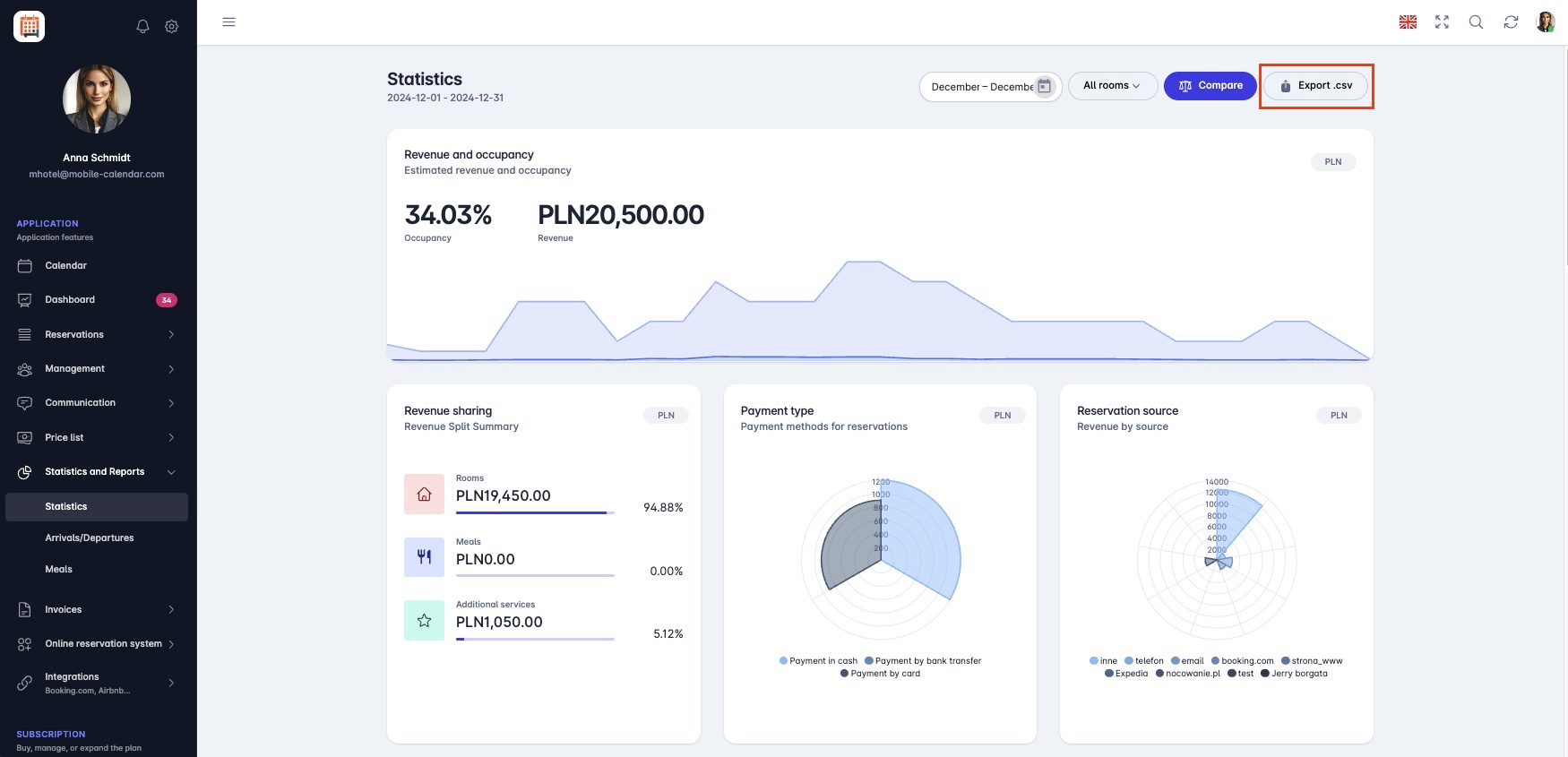
Export 1 In the bottom left corner, click the Export .csv button.
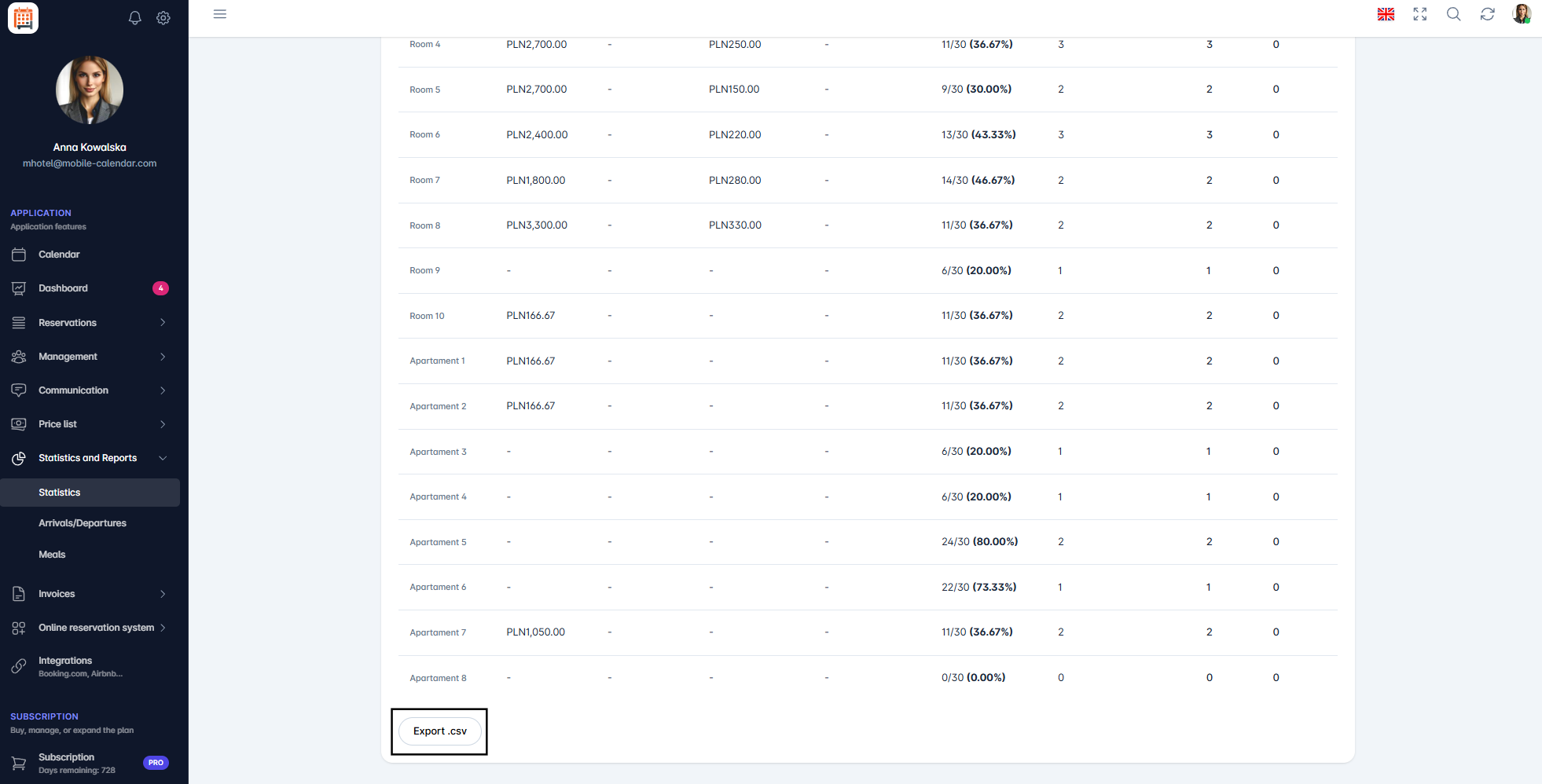
Export 2


- The CSV file will be downloaded.
View of the downloaded .csv file:

Mobile Application
Introduction
You can save statistics to a CSV file and open it, for example, in a spreadsheet. The file contains data broken down by rooms, for the date range and rooms selected on the screen.
Instructions
In the bottom menu, go to the More tab.
Open the Statistics and Reports -> Statistics section.
Select the date range and rooms.
In the top-right corner, tap the Three Dots icon.
Tap Export .csv.

- The system sharing sheet will appear with the CSV file. Choose where you want to save or send the file.

Was this article helpful?
Ask AI about this article
Choose an assistant. It opens with a ready-made question, reads this article and answers your questions.
Ask AI about this article
Choose an assistant. It opens with a ready-made question, reads this article and answers your questions.