

 Ask AI


Booking settings
Choose an assistant. It opens with a ready-made question, reads this article and answers your questions.
Open in ChatGPT (opens in a new tab) Open in Claude (opens in a new tab) Open in Perplexity (opens in a new tab) Open in Gemini (opens in a new tab) Open in Grok (opens in a new tab) View as MarkdownChoose an assistant. It opens with a ready-made question, reads this article and answers your questions.
Open in ChatGPT (opens in a new tab) Open in Claude (opens in a new tab) Open in Perplexity (opens in a new tab) Open in Gemini (opens in a new tab) Open in Grok (opens in a new tab) View as MarkdownOn this page
On this page
Web Application
Introduction
Customize features related to reservation management. Here you will find options for displaying blocks, automatically managing room status, and personalizing booking confirmations.
Instructions
In the left sidebar menu, at the top, click the Settings icon.
From the settings list, select Reservations.
Enable additional features using the toggle switches to make reservation management easier and increase the visibility of important information. Click the toggle to activate a given option:

- Display blocks as reservations: If this option is enabled, blocks will be displayed on the Dashboard in the same way as reservations.
- Change the room to dirty at checkout: After checking out a guest, the room status will automatically be changed to "dirty". Changing the room status automatically displays a red dot in the calendar view next to that room.

Change the reservation color when guests check out - After the guest checks out, the reservation color will automatically change to the selected one.
- In the What color should be set? field, select the color to be assigned to the reservation after the guest checks out.
Change the reservation color when guests check in - After the guest checks in, the reservation color will automatically change to the selected one.
- In the What color should be set? field, select the color to be assigned to the reservation after the guest checks in.
Booking confirmation
Choose what information you want to display in the booking confirmation document:
- In the list of available information, you will find various fields you can add to the confirmation document, including: Property name, Booking number, City.
- Click the box next to the information you want to display on the booking confirmation document.
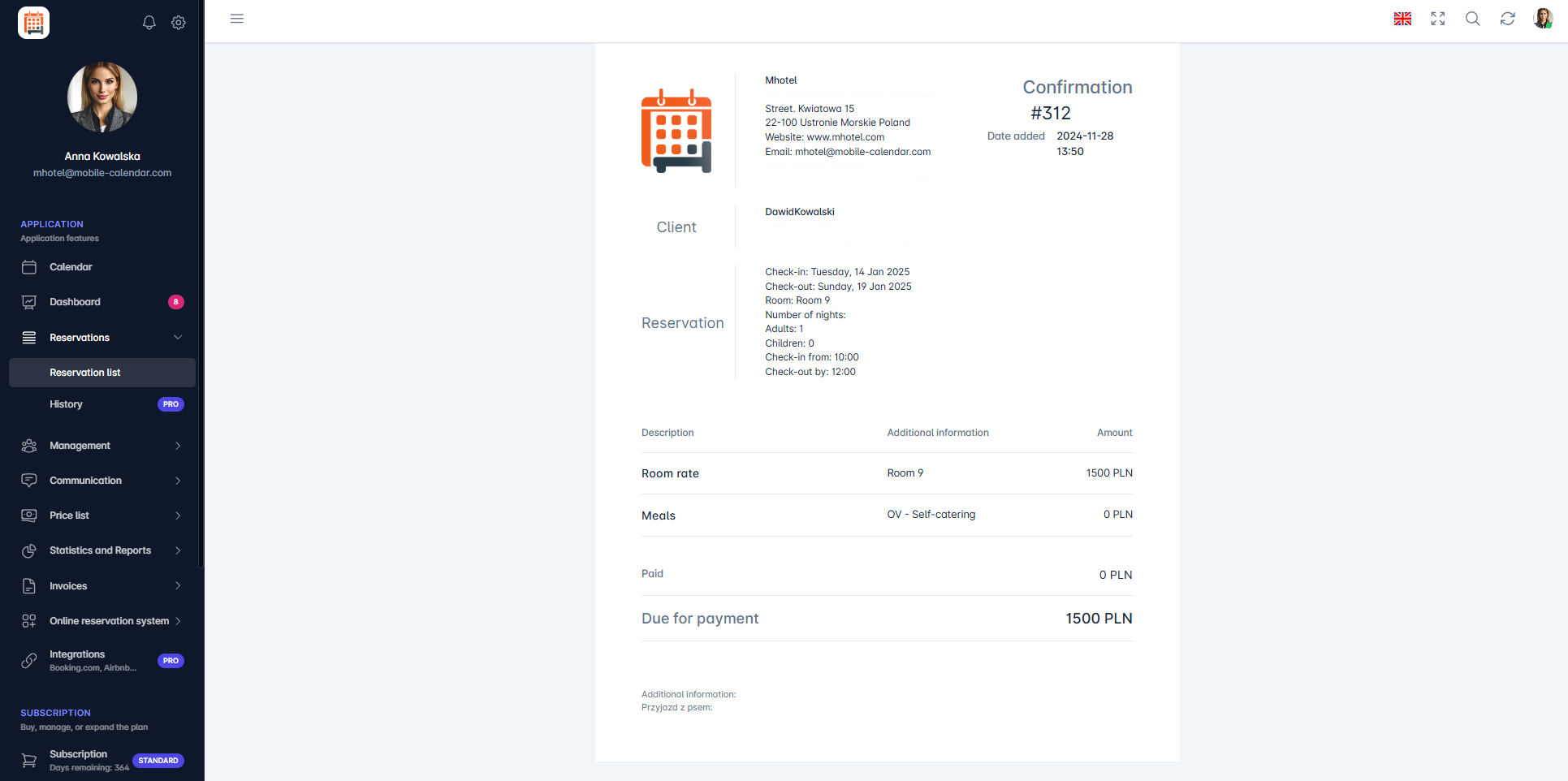
Potwierdzenie rezerwacji

Mobile Application
Introduction
In reservation settings, you can choose how blocked dates are displayed, set automatic changes at check-in and check-out, and customize the contents of reservation confirmations.
Instructions
In the bottom menu, go to the More tab.
In the "My account" section, tap Settings -> Reservations.
A list of settings will appear. Turn on the toggle next to the option you want to use.
Display blocked dates as reservations: blocked dates will appear as reservations in Reservations and on the Dashboard.
Change the room status to dirty upon check-out: after a guest checks out, the room status will change to dirty.
Change the color of the reservation when checking out guests and Change the color of the reservation upon guest check-in: the reservation color will change to the selected color.
Tap Reservation confirmation.

- A list of details will appear. Select the ones to include in the confirmation, then tap Save.

Was this article helpful?
Ask AI about this article
Choose an assistant. It opens with a ready-made question, reads this article and answers your questions.
Ask AI about this article
Choose an assistant. It opens with a ready-made question, reads this article and answers your questions.