

 Ask AI


Pricing Models
Choose an assistant. It opens with a ready-made question, reads this article and answers your questions.
Open in ChatGPT (opens in a new tab) Open in Claude (opens in a new tab) Open in Perplexity (opens in a new tab) Open in Gemini (opens in a new tab) Open in Grok (opens in a new tab) View as MarkdownChoose an assistant. It opens with a ready-made question, reads this article and answers your questions.
Open in ChatGPT (opens in a new tab) Open in Claude (opens in a new tab) Open in Perplexity (opens in a new tab) Open in Gemini (opens in a new tab) Open in Grok (opens in a new tab) View as MarkdownOn this page
On this page
Web Application
Introduction
In mobile-calendar, you have the ability to flexibly set your pricing model, allowing you to tailor offers to the needs of various clients. With this feature, you can easily adjust prices based on the number of people, making your offer more attractive and competitive in the market. This is an excellent solution that enables you to optimize price management and increase your chances of bookings.
Instructions
From the left menu, click on the Pricing tab -> Set Prices.
Select the price list by clicking on mobile-calendar.
Click the Edit button next to the pricing plan.

- A form titled "Edit Pricing Model" will appear on the screen.
- Choose your preferred pricing model: Price per Room or Price Based on Number of People.
- In the case of selecting Price Based on Number of People:
- Click on the Base Price field and select from the dropdown list the number of people that will be considered the base price (the system will automatically recalculate prices based on this number).
Click on the Slider named "Enabled" to activate the specific number option.
Set whether the price should be Increased + or Decreased - from the base price for the selected number options.
Set whether the price should change by a specific amount (in this case, select Currency) or percentage-wise (in that case, select %).
Enter the value, e.g., 10 (depending on the selected setting: currency or %). This value will be used for calculations based on the base price.
Add rooms in which you want to implement pricing models. Check the box next to the room name that should be updated.
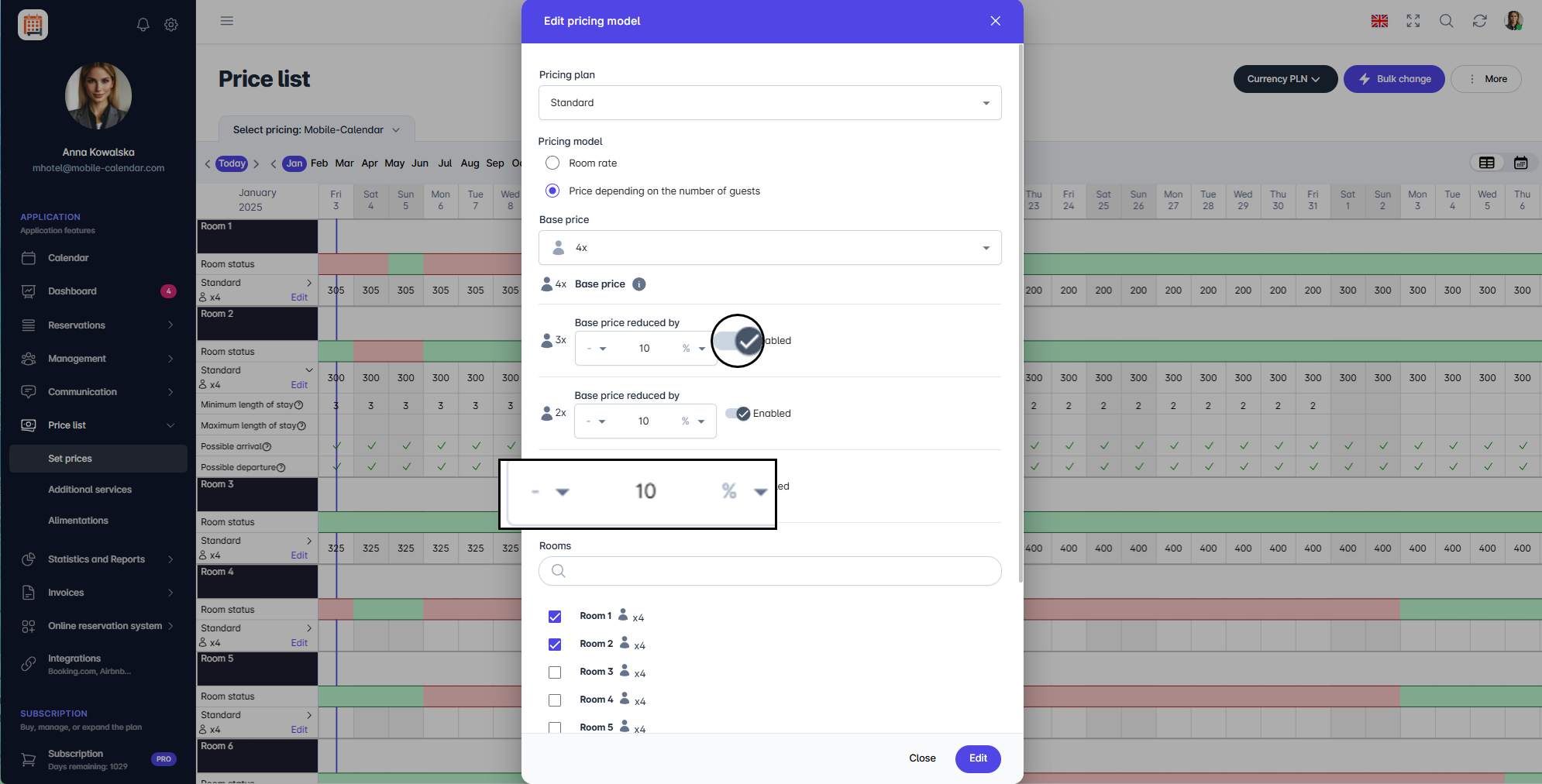
Pricing model
- Choose your preferred pricing model: Price per Room or Price Based on Number of People.

- Click the Edit button in the lower right corner.
- The pricing model will be saved.
Mobile Application
Introduction
The pricing model determines whether the price applies to the entire room or depends on the number of guests. Set it separately for each room.
Instructions
In the bottom menu, go to the More tab.
Go to Price list -> Set prices.
If "Select price list source" appears on the screen, tap mobile-calendar.
Select a room at the top of the screen.
Next to the pricing plan, tap the Gear icon, then tap Edit pricing model.

In the "Pricing model" window, select Room rate or Price depending on the number of guests.
For a price that depends on the number of guests:
In the Select base price field, select the number of guests for which you will enter a price in the price list.
For at least one other number of guests, enable the toggle and set how much lower or higher the price should be, as a percentage or in currency.
Scroll down the window and tap Save.

- The model will be saved. For a price that depends on the number of guests, buttons showing the number of guests will appear on the "Set prices" screen.
Was this article helpful?
Ask AI about this article
Choose an assistant. It opens with a ready-made question, reads this article and answers your questions.
Ask AI about this article
Choose an assistant. It opens with a ready-made question, reads this article and answers your questions.