

 Ask AI


Price Calendar Views
Choose an assistant. It opens with a ready-made question, reads this article and answers your questions.
Open in ChatGPT (opens in a new tab) Open in Claude (opens in a new tab) Open in Perplexity (opens in a new tab) Open in Gemini (opens in a new tab) Open in Grok (opens in a new tab) View as MarkdownChoose an assistant. It opens with a ready-made question, reads this article and answers your questions.
Open in ChatGPT (opens in a new tab) Open in Claude (opens in a new tab) Open in Perplexity (opens in a new tab) Open in Gemini (opens in a new tab) Open in Grok (opens in a new tab) View as MarkdownOn this page
On this page
Web Application
Introduction
In the mobile-calendar, there are two pricing views available:
- for all rooms in the default view,
- for a selected room in the monthly view.
Instructions
Go to the Pricing tab -> Set Prices.
On the right side of the screen, there are two options for selecting the pricing view.
View 1: Default View
When you enter the Set Prices tab, the default view will be automatically enabled.
This view displays all rooms along with their prices and availability for the selected period.
The view allows you to expand the pricing plan and view restrictions.
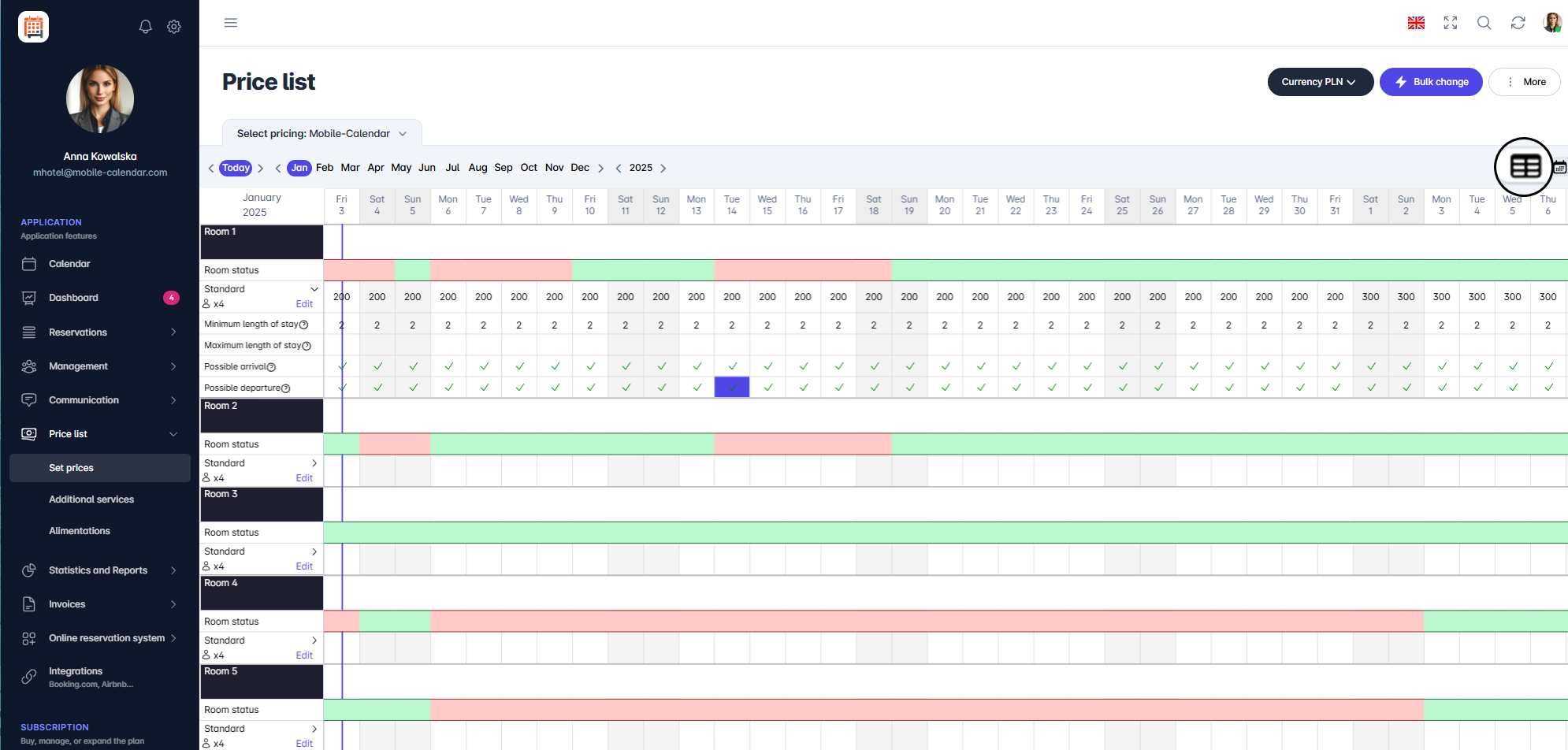
1 pricing view Meaning of colors in the calendar:
- Green: available date.
- Red: unavailable date.

View 2: Monthly View
- To enable the monthly view, click the second calendar icon.
- In the top right corner, click on the room name and select the room you want to display.
- In this view, the selected room and its prices and availability for the selected period are visible.

- Meaning of colors in the calendar:
- Green: Available date, price set.
- Yellow: Available date, no price set.
- Red: Unavailable date.
Mobile Application
Introduction
You can view prices on the Set prices screen in monthly or annual view. The annual view helps you check the whole year, while the monthly view is used to change prices.
Instructions
In the bottom menu, go to the More tab.
Go to Price list -> Set prices.
If "Select price list source" appears on the screen, tap mobile-calendar.
At the top of the screen, tap the Calendar icon next to the price list source name.
In the "Price list view" window, select Monthly view or Annual view.

- In the annual view, 12 months will appear on the screen. Tap a month to open it in monthly view.

- In monthly view, tap the arrow to the left of the month name to return to annual view.
What the calendar colors mean
Green: Available term, price set.
Yellow: Availability term, price not set.
Red: Dates not available.
Was this article helpful?
Ask AI about this article
Choose an assistant. It opens with a ready-made question, reads this article and answers your questions.
Ask AI about this article
Choose an assistant. It opens with a ready-made question, reads this article and answers your questions.